How to check and fix OCR errors in scanned PDFs
OCR misreads digits, names and IBANs without warning. Find those errors in a scanned PDF and correct its text layer before you rely on search.
Published
A searchable PDF shows you the scan but searches its hidden OCR text. If OCR read an amount, a name or an IBAN wrong, the page looks right and the search still misses it. To catch those errors, check the text in three rounds:
- Go through the words the OCR program was unsure about.
- Compare the values you rely on with the scan by hand.
- Search the corrected PDF.
This guide uses Inklight, which recognizes scans on your own computer and outlines the words it doubts. Checking and correcting cost nothing on the Free plan.
Why OCR errors are hard to see
A PDF viewer draws the scanned image. The recognized text lies under it, invisible, so a page with a wrong text layer looks exactly like a page with a correct one. You notice the error only when a search finds nothing, or when you copy a number out of the PDF and paste the wrong one.
The mistakes follow a pattern. OCR confuses characters that look alike:
0andO,1,landI,5andS,8andBrnread asm, ormread asrn- a decimal comma read as a point, or a point that disappears
- accents and umlauts that are dropped or added
Bad scans make all of these more likely. Faint copies, stamps over text, skewed pages and low resolution all cost accuracy. The Tesseract documentation, for example, recommends at least 300 dpi.
Test a PDF in under a minute
Pick a number you can read on the page, such as an invoice total or a file number. Open the PDF in any viewer, press Ctrl+F and type it exactly as printed. If the viewer finds and highlights it, that word is right. If it finds nothing, the text layer is missing or wrong.
On Linux you can print the whole text layer and read it against the scan:
pdftotext invoice-0412_ocr.pdf -
pdftotext comes with Poppler; its manual page lists the options. Both tests only tell you that errors exist. To fix them, you need the recognized words next to the scan.
Step through the doubtful words first
When Inklight has recognized a file, its card in the Processing Queue says how many words are left to check. The Needs review switch above the queue shows only those files.
Inklight outlines these words:
- words and numbers below its confidence threshold, unless a word list knows the word (word lists ship for 13 languages)
- words that two readers, two recognition models reading the same page, read differently
- every part of an IBAN whose checksum fails
Click Check words in the queue header to go through all of them, or open a file and click Check words there for that file alone. The Check pass starts with the riskiest words. A failing IBAN comes first. After that, a number or identifier counts for more than an ordinary word, and lower confidence counts for more than higher. Each step cuts the line out of the scan and outlines the word in it.
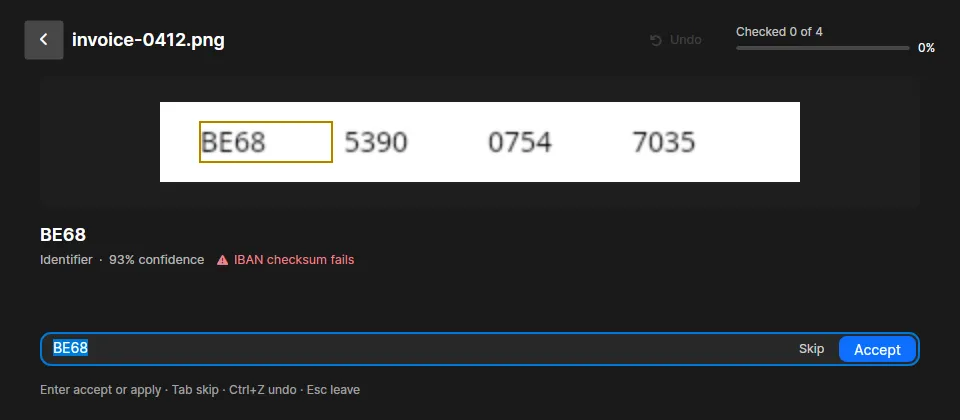
An IBAN carries its own check digits. When the checksum fails, at least one character is wrong, either in the reading or on the paper. Compare each group with the original before you accept it.
Decide each word with the keyboard:
- Enter accepts the word as read.
- To correct it, type the right text and press Enter.
- Tab skips the word. It stays to check.
- Ctrl+Z undoes your last decision.
- Esc leaves the Check pass and keeps every decision so far.
When two readers disagree, both readings appear as buttons. Press 1 or 2 to take one. If neither is right, press Backspace and type the correction.
Fix a repeated misreading once
A name misread in one letter is usually misread the same way on every page. The Check pass groups identical words, so you decide them together. The label “×3 in 2 documents” tells you how many there are, and a strip shows each one in its own line.
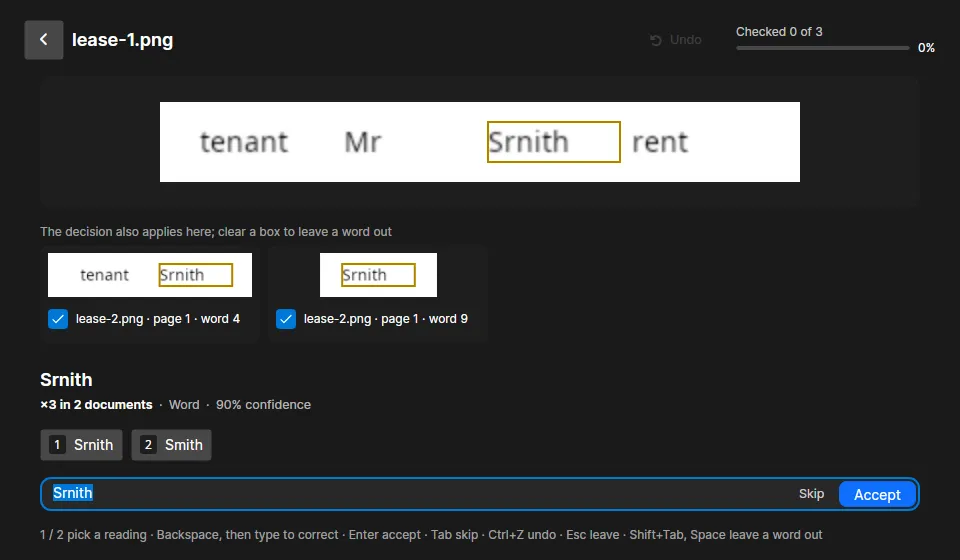
Here the second reader saw “Smith”, so pressing 2 fixes all three places. If one of them really is a different word, clear its box first, with a click or with Shift+Tab and Space. That word then comes next as a group of its own.
Check the values you rely on
The Check pass only shows words that meet its rules. A word read wrong with high confidence, where both readers agree, is not outlined. For the values a decision depends on, compare by hand. Typical ones:
- Office paperwork. Invoice numbers, totals, due dates, customer and supplier names.
- Legal files. Case and file numbers, the names of the parties, dates of service and deadlines.
- Tax paperwork. Tax IDs, assessed and refunded amounts, IBANs, years and payment dates.
Open the file with a click on its card. Choose Scan and text side by side, or press 3. The left pane shows the scan, the right pane draws the recognized words in place. Press Ctrl+F and type the value as printed. The match is marked in both panes, and “No results” means the text layer reads it differently.
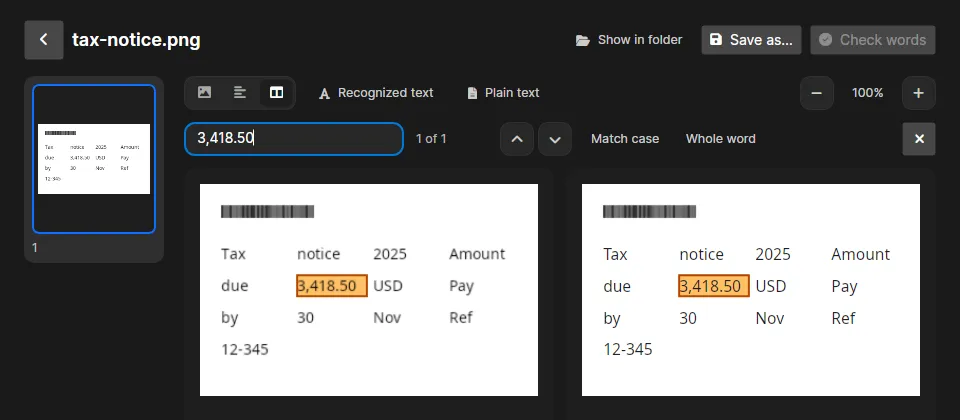
To correct a word, click it in either pane, type the right text and press Enter. For a misreading that repeats on the page, Ctrl+H opens Replace and Replace all. Ctrl+Z undoes a change while you are on the page.
Search the corrected PDF
You do not have to save anything. After every decision, Inklight rewrites the searchable PDF in the background with your corrections. Only the invisible text changes. The page images stay as they were scanned.
If you edited that PDF in another program in the meantime, Inklight leaves it alone and writes a new, numbered copy beside it instead. Then repeat the test from the start: open the _ocr.pdf file, press Ctrl+F and type the value. Now it is found.
Word, Excel or Markdown files you chose under Preferences › Output › Also write are rewritten with the same corrections, so a total you fixed is also right in the spreadsheet.
Rescan when a page has many errors
Some pages are not worth correcting word by word. If one page has a dozen outlined words, or a whole line comes out wrong, scan it again. Inklight can scan from your scanner directly at 200 to 600 dpi, and it straightens crooked pages by default. The new scan joins the queue like any other file.
What Inklight does not check
- Handwriting. Inklight reads printed Latin-script text only.
- Files from a Business hot folder. They are converted, never checked. To check one, add it to the Processing Queue yourself.
Get started
Download Inklight for Windows or Linux. Recognition, the Check pass and corrections are on every plan. The Free plan writes a small footer on each page; see the plans. If you are setting up OCR for the first time, start with Make scanned PDFs searchable offline.