What is a searchable PDF, and how do you tell?
A searchable PDF carries an invisible text layer over the scanned page. Three ways to check a file, what the layer is for, and how to add one.
Published
A searchable PDF is a PDF whose pages carry text that a program can read: Ctrl+F finds words, the cursor selects them, and a document system indexes them. A scanned PDF without that text is a stack of pictures, and every search in it comes back empty.
Both files look the same on screen. The difference is in the file.
Three kinds of PDF
Text PDFs come from Word, a browser or an accounting program. The text is stored as text, so they are searchable from the start.
Image-only PDFs come from a scanner, a copier or a phone camera. Each page is one picture. There is no text in the file, only pixels that happen to look like letters.
Searchable PDFs, sometimes called sandwich PDFs, are image-only PDFs with a second layer added: the words an OCR program recognized, placed invisibly over the picture at the position where they appear on the page. You still see the scan. The search, the cursor and the indexer see the text underneath.
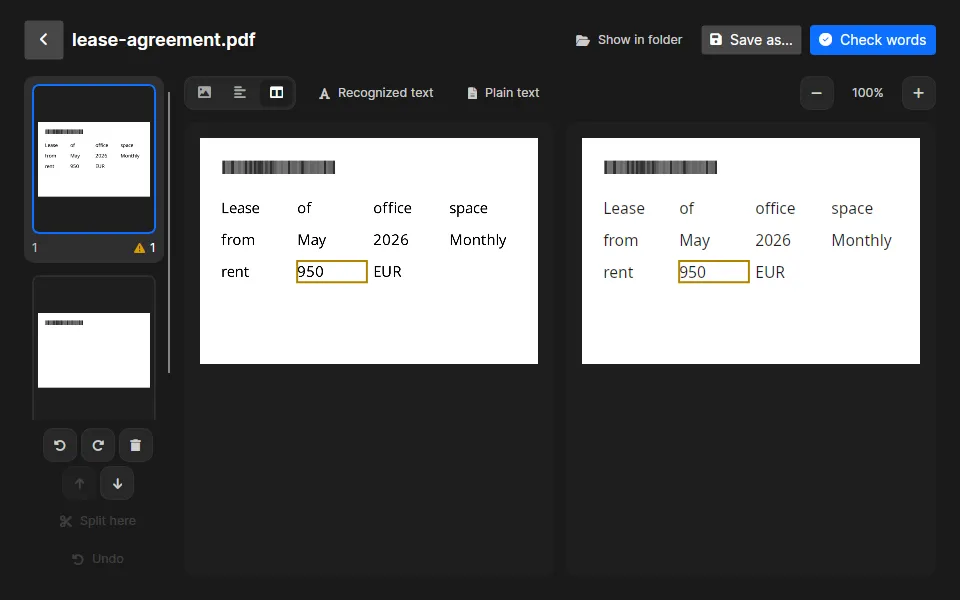
That is why a searchable PDF can be both the archive copy, which must look exactly like the paper, and the working copy you search through.
How to tell whether a PDF is searchable
Open the file in any PDF viewer and try one of these:
- Press Ctrl+F and type a word you can see on the page. If the viewer finds nothing, or reports zero matches, the page has no text.
- Drag the cursor across a line. In a searchable PDF the words highlight. In an image-only PDF the whole page highlights as one picture, or nothing happens.
- On Linux, print the text layer in a terminal. The
pdftotexttool comes with Poppler (manual page):
pdftotext scan.pdf - | head
An empty result, or a row of form-feed characters, means there is no text to print.
A PDF can also be partly searchable: a contract whose first pages came from Word and whose signature page was scanned and appended. The checks above have to be made on the scanned page, not on the first one.
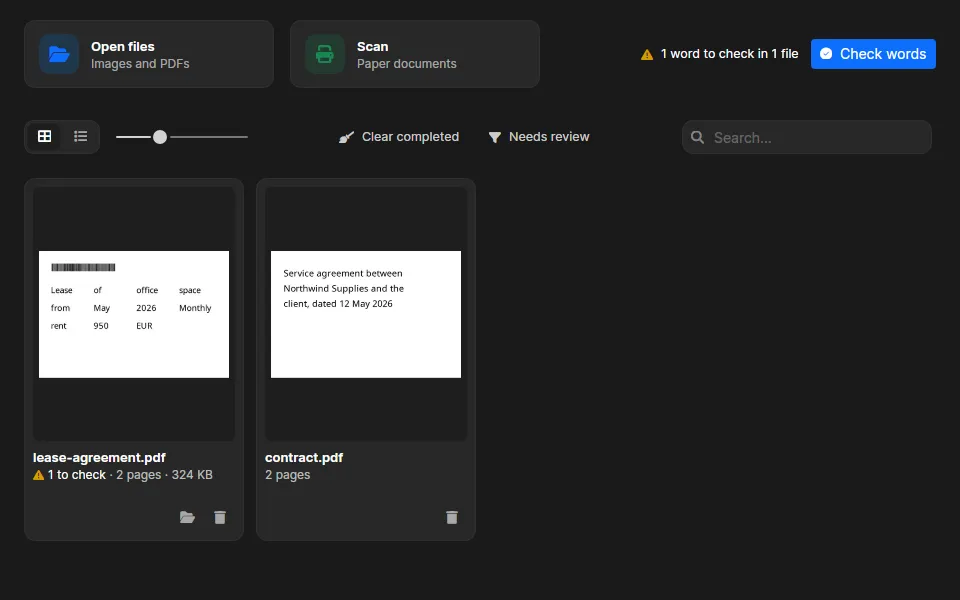
Inklight makes the same check when you drop a file. A PDF that already has text on every page is left alone and marked Already searchable; one with scanned pages is recognized, and only those pages get a text layer.
What the text layer is for
- Search inside one file, and across a folder of files with the operating system’s search or a document management system.
- Copy and paste an address, an amount or a paragraph instead of retyping it.
- Screen readers can read the page aloud; an image-only PDF is silent.
- Court and agency filing. The US Court of Appeals for the Second Circuit, for one, returns any PDF that is not text-searchable to the filer; the invisible layer satisfies such rules without changing how the page looks.
- Long-term archiving. PDF/A, the archival profile, allows a text layer, so the archive copy can also be the searchable copy.
The layer is only as good as its words. If OCR read a total of 1,280 as 1,230, the page looks right and the search for 1,280 still misses it. How to find and fix such errors: Fix OCR errors in a scanned PDF.
How to make a PDF searchable
An OCR program reads each page image, recognizes the words and writes them into the PDF as the invisible layer. Online converters do this on their servers, after you upload the file; desktop programs do it on your own computer. Which to use, and what the limits of each are: Searchable PDF converter: online or on your PC?
Inklight is the desktop route for Windows and Linux. Drop a scan onto the window, and a searchable copy appears beside the original under the same name plus _ocr. The Free plan has no page or time limit; the step-by-step is in How to make a PDF searchable on Windows and Linux, and the download is under Download.