How to make a PDF searchable on Windows and Linux
Turn a scanned PDF into a searchable PDF on your own computer, free and with no upload. Steps for Windows and Linux, from install to the first Ctrl+F.
Updated
A scanned PDF holds pictures of pages, so Ctrl+F finds nothing in it. To make it searchable, a program has to read the page images with OCR and put the recognized words into the PDF as an invisible text layer. If you run that program on your own computer, the scan never leaves it.
Inklight does this on Windows and Linux. You drop a scan, Inklight recognizes it on your machine and writes a searchable copy beside the original. It needs the internet once, to download its recognition models. After that, recognition works offline.
Before you start
- A Windows or Linux PC with an x64 processor. A graphics card is optional, since recognition also runs on the CPU.
- Scans of printed text in a Latin-script language, such as English, German, French, Spanish, Italian or Dutch. Inklight does not read handwriting.
- An internet connection for the first run only.
Install Inklight
On Windows, install Inklight from the Microsoft Store. On Linux, download the AppImage. Both are linked under Download.
An AppImage has to be marked executable before it runs. Allow it to run as a program in the file’s properties, or run chmod +x on it in a terminal, as the AppImage quickstart shows. Then start it with a double-click.
Download the recognition models once
Start Inklight while you are online and drop your first scan onto the window. Inklight asks “Download recognition models?” and shows the size of the download. Choose Download. The first file’s card shows the progress, and recognition starts when the download ends.
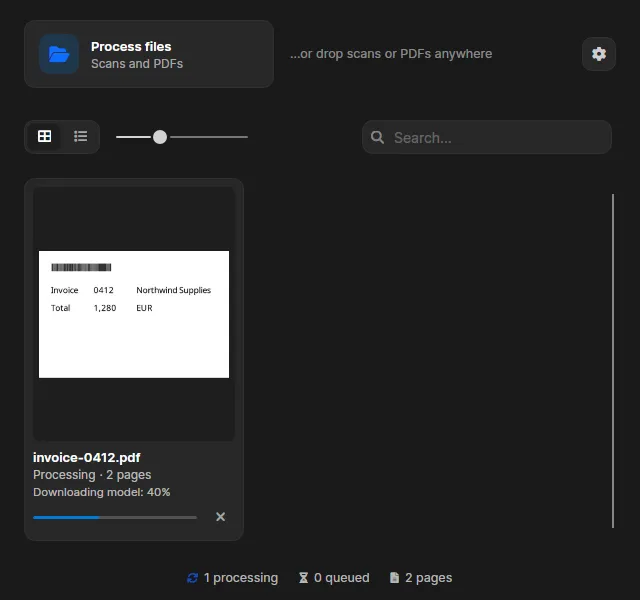
Inklight keeps the models and reuses them for every later file, so you can disconnect from here on. On first use, Inklight also measures your machine and picks a recognition preset that suits it.
Recognition does not use the network. Inklight goes online only to download models, check your licence, look for updates and send error reports. Document contents are never part of that traffic.
Add your scanned PDFs
Drag files onto the window, or click Process files and pick them. Inklight accepts PDF, TIFF (multi-page too), PNG, JPEG, WebP, BMP, HEIC, AVIF and JPEG XL. HEIC and AVIF need your system’s decoder: on Windows, install the HEVC Video Extensions (HEIC) or the AV1 Video Extension (AVIF) from the Microsoft Store; on Linux, a libheif that can decode HEVC or AV1. Without one, Inklight ignores those files. JPEG XL is built in, except on Windows on ARM.
Each file becomes a Job in the Processing Queue. Jobs are recognized in the background, one after another, so you can keep adding files while the first ones run.
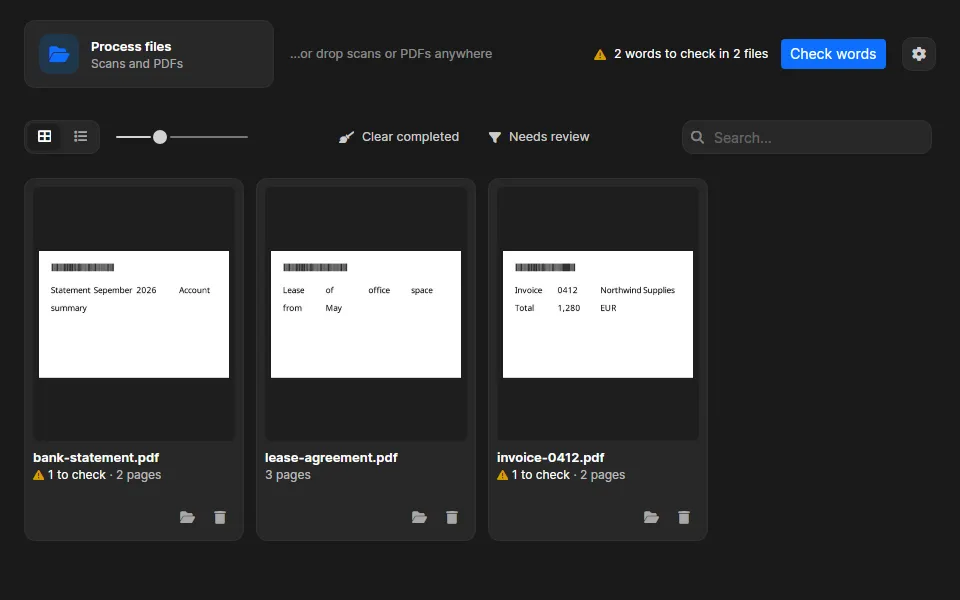
A PDF that already has text on every page is left alone and marked Already searchable. In a PDF that mixes text pages with scanned pages, Inklight recognizes only the pages without text.
Find the searchable PDF
When a Job is done, its searchable PDF sits beside the original under the original’s name plus _ocr. A scan named invoice-0412.pdf gets invoice-0412_ocr.pdf. The folder icon on the card opens that folder.
The original file is never changed. The new PDF keeps all of its pages and adds the invisible text layer. An image becomes a PDF with the scan as its page.
To collect every searchable PDF in one folder, or to change the file name pattern, open Preferences with the gear button and change Save output.
Need the text in Word, or the tables in Excel, as well? Tick the formats under Also write in the same Output preferences, or use Save as… on a document’s page. Word, Excel and Markdown come with Personal and are editable, not pixel-identical; plain text is on every plan.
The Free plan writes a small Inklight footer on every page. Personal and Business write clean files, and a purchase rewrites the files still in the queue without the footer. See the plans.
Check the words Inklight is unsure about
A text layer is only as useful as its words. If OCR reads a total of 1,280 as 1,230, a search for the right number misses the page.
Inklight outlines the words it is unsure about instead of guessing silently. That covers numbers, words below its confidence threshold that no word list knows, words where two readers disagreed, and IBANs whose checksum fails. The card and the header show how many are waiting.
Click Check words to step through them, worst first. Each step shows the line from the scan with the word outlined.
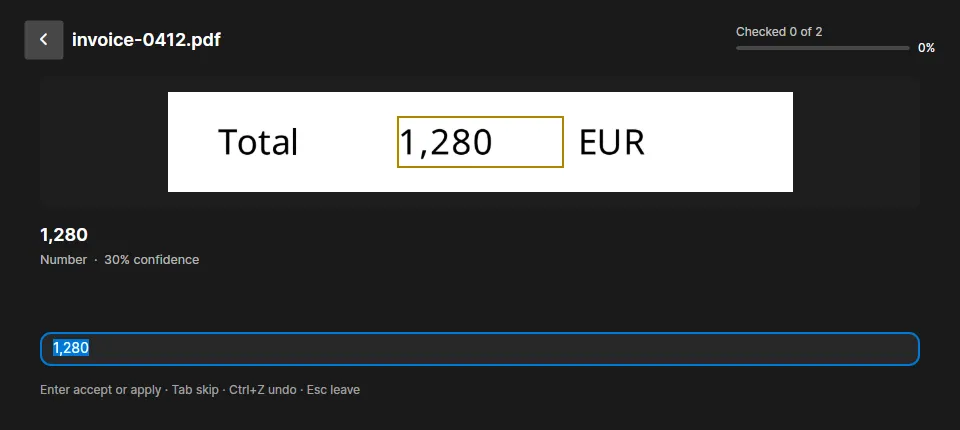
Press Enter to accept the word, or type the correct text and press Enter. Tab skips a word, Ctrl+Z undoes the last decision and Esc leaves. Inklight rewrites the searchable PDF with your decisions.
Search the result
Open the _ocr.pdf file in any PDF viewer and press Ctrl+F. The words from the scan are now found and highlighted on the page, and you can select and copy them.
On Linux you can also print the text layer in a terminal:
pdftotext invoice-0412_ocr.pdf -
The pdftotext tool comes with Poppler. Its manual page lists the options.
Prefer the command line?
OCRmyPDF is an open-source Python program that adds a text layer to scanned PDFs with the Tesseract OCR engine. It suits scripts and batch jobs. Its documentation lists the limits it inherits from Tesseract, including that it may output gibberish as recognized text. Tesseract alternative compares the engine with Inklight, including Inklight’s own command line in Business.
If you would rather drop files into a window and review the doubtful words before you rely on the text, download Inklight. The Free plan has no page or time limit.