OCR PDF to Word offline, as an editable .docx
Turn a scanned PDF into an editable Word document on your own Windows or Linux PC, after you have checked the words the OCR was unsure of.
Published
A scanned PDF is a picture of a page, so Word has nothing to edit. To get a .docx you can change, OCR has to read the words first. Inklight does that on your computer and writes the Word file next to a searchable PDF. Nothing is uploaded.
The Word file is for editing: headings, paragraphs, lists and tables in reading order, with your corrections in the text. It is not a pixel copy of the page. The searchable PDF stays the copy that looks like the paper.
How it works in Inklight
- Drop the scanned PDF or image onto the Inklight window. It becomes a Job in the Processing Queue and gets a searchable PDF when it is done.
- Open it from the queue. Words the OCR was unsure of are outlined; Check words at the top right takes you through them one at a time. Fix an amount or a name there before it ends up in Word.
- Click Save as… and pick Word (.docx) in the file type list.
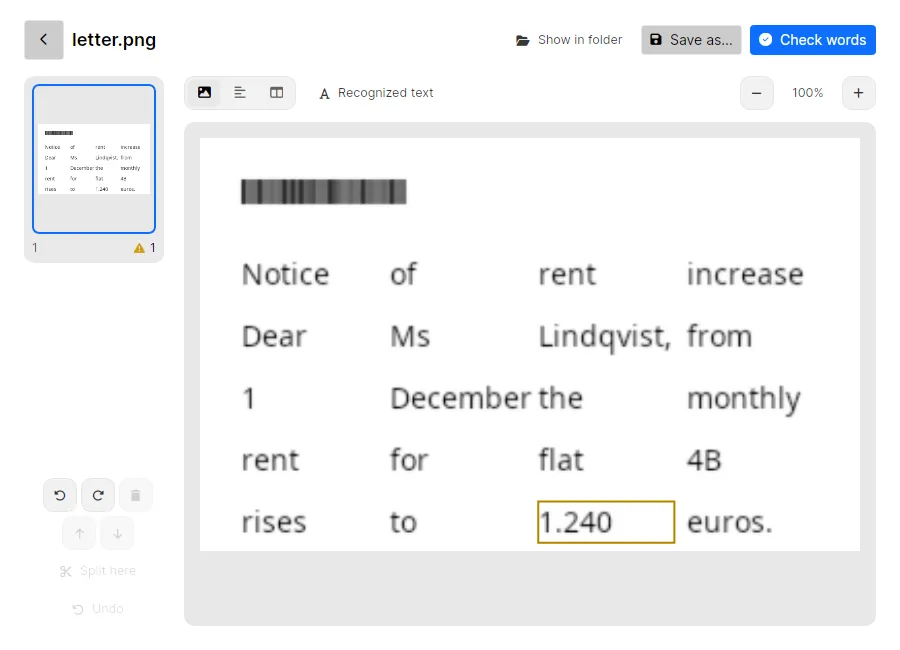
To get a Word file for every scan without asking, tick Word (.docx) under Preferences › Output › Also write. When you correct a word later, Inklight writes the Word file again with the correction. Save OCR results as Word or Excel shows both routes step by step.
The Word file takes the searchable PDF’s name with .docx, so letter.pdf gives letter_ocr.pdf and letter_ocr.docx. If you edited the Word file before a later correction, Inklight leaves your version alone and writes the corrected one to a new numbered file, such as letter_ocr (1).docx. Turning or deleting a page on the detail page updates the Word file the same way.
What you get
- On Personal and Business, a Word document with the title as Heading 1, section headings as Heading 2, body text as Normal paragraphs, list items as bullets and tables as Word tables.
- A searchable PDF of every scan, on every plan. Free adds a small footer to it.
- Pictures on the page cropped from the scan and placed where they stood.
- The words you fixed in the Check pass, as you fixed them.
- The lines of each paragraph joined into one, so the text reflows when you edit it. Printed bullets become Word bullets, and captions come out in italics.
- Table cells that spanned rows or columns, merged in the Word table as they were on the page.
- On Business, the same Word files from hot folders, so a scanner folder fills up with .docx files on its own.
- On Business, the command line writes the Word file too when you add
--formats docxto a conversion.
Limits
- Layout is not copied. Columns, fonts, spacing and page breaks are left behind, and running headers and footers are dropped.
- Headings and tables need a layout-aware recognition preset. Without one the Word file is plain paragraphs, and the save dialog says so.
- During the trial, the Word export works until you have used the 100 trial pages. On Free, a ticked Word box is skipped and the Job’s row says why.
- Printed Latin-script text only: no handwriting, no Chinese, Japanese or Korean.
- Windows and Linux only. There is no macOS version and no online version.
Related guides
- Scanned PDF to Excel for statements and price lists.
- Check and fix OCR errors before you rely on the text.
- ABBYY FineReader alternative compares Inklight with FineReader’s subscription.
Download Inklight. The seven-day trial includes the Word export, so you can test it on your own scans before you buy.