Scanned PDF to Excel with one worksheet per table
Turn the tables in a scanned bank statement or price list into an Excel workbook on Windows or Linux, offline, with every cell kept as read.
Published
A scanned statement or price list is a picture, so Excel cannot sort or sum it. OCR has to read the table first. Inklight reads it on your computer and writes an Excel workbook with one worksheet per table it found. Nothing is uploaded.
Every cell keeps its text exactly as read. 0012 stays 0012 and 01.10. does not turn into a date.
How it works in Inklight
- Drop the scanned PDF or image onto the Inklight window. It becomes a Job in the Processing Queue and gets a searchable PDF when it is done.
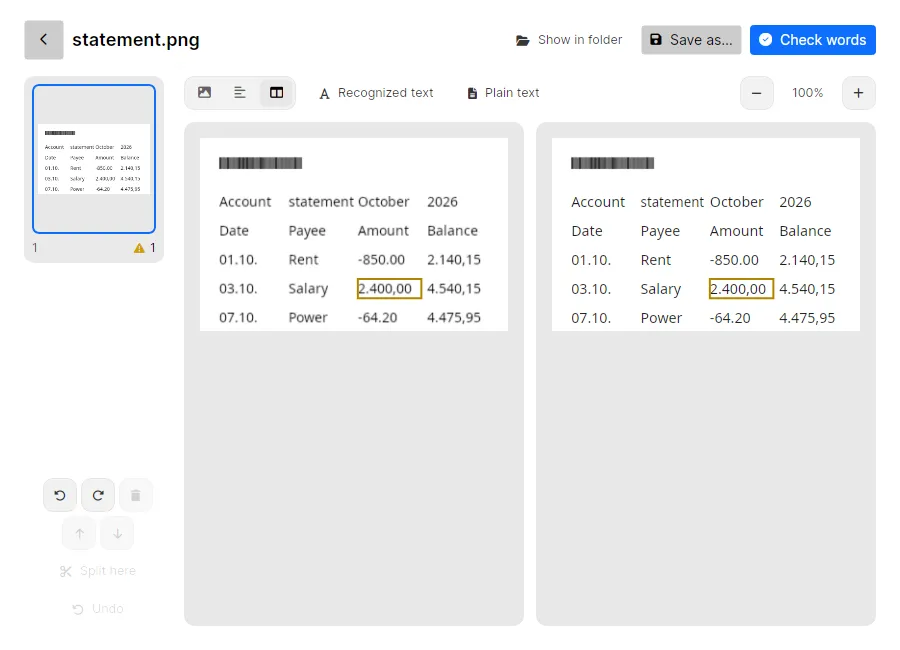
- Open it from the queue and press 3 (or the third view button above the page) to see the scan beside what was read. Amounts the OCR was unsure of are outlined; correct them here or with Check words.
- Click Save as… and pick Excel (.xlsx) in the file type list.
To get a workbook for every scan, tick Excel (.xlsx) under Preferences › Output › Also write. Save OCR results as Word or Excel shows both routes, with the workbook opened in LibreOffice.
With Also write ticked, the workbook lands beside the searchable PDF under the same name, so statement.pdf gives statement_ocr.pdf and statement_ocr.xlsx. Inklight writes it after the PDF, and the next file in the queue does not wait for it. If a file of that name already exists, the new workbook gets a number, such as statement_ocr (1).xlsx.
Corrections after the export
Fix an amount on the detail page after the workbook exists, and Inklight writes the workbook again with the new value. If you have already changed the workbook in your spreadsheet, Inklight does not overwrite your work. It leaves that file alone and writes the corrected workbook to a new numbered file beside it. Workbooks from hot folders are written once and never updated.
What you get
- On Personal and Business, one worksheet per recognized table, named by page and position:
p1-t1is the first table on page 1,p1-t2the second. - Each cell at the row and column it had in the table; a cell that spanned columns becomes a merged range.
- Your corrections in the cells.
- A searchable PDF of the same scan, on every plan. Free adds a small footer to it.
- On Business, the workbooks also come from hot folders, without opening the app.
- On Business, the command line writes the workbook too when you add
--formats xlsxto a conversion.
Limits
- Every cell is text. To add up a column, convert it to numbers in your spreadsheet first.
- A document without a table writes no Excel file. Save as… then says “No tables found”.
- During the trial, the Excel export works until you have used the 100 trial pages. On Free, a ticked Excel box is skipped and the Job’s row says why.
- Tables need a layout-aware recognition preset; without one there is no workbook.
- No formulas, colours or column widths come across, only the cells’ text.
- Printed Latin-script text only: no handwriting.
- Windows and Linux only. There is no macOS version and no online version.
Related guides
- OCR PDF to Word for letters and contracts you want to edit.
- Batch OCR a whole folder of scanned PDFs for a backlog of statements.
- ABBYY FineReader alternative compares Inklight with FineReader’s subscription.
Download Inklight. The seven-day trial includes the Excel export, so you can try it on a real statement before you buy.