Batch OCR a whole folder of scanned PDFs offline
Turn a backlog of scanned PDFs into searchable PDFs in one run on Windows or Linux, without uploading a page.
Published
To clear a backlog of scans, hand every file to a local OCR program at once and let it work through them while you do something else. Inklight does this on Windows and Linux. You select all the PDFs in a folder and drop them on its window. Inklight recognizes them one after another on your computer and writes a searchable copy of each. No page is uploaded.
This guide covers the batch. To install Inklight and download its recognition models first, follow Make scanned PDFs searchable offline.
Decide where the searchable PDFs go
Set this first. Each Job writes its searchable PDF as soon as it is done, so a change made halfway through applies only to the files that finish after it.
Open File › Preferences… and go to Output. Save output offers three places:
- Next to the original, the default. A scan named
box-04.pdfgetsbox-04_ocr.pdfin the same folder, so your folder structure stays as it is. - In one folder. Every searchable PDF goes into the folder you choose, away from the originals. If two originals in different folders share a name, the second one’s PDF gets
(1)added, because Inklight never replaces an existing file. - Replace the original (Personal and Business). Inklight writes each searchable PDF over its original PDF after a one-time confirmation. The app warns that this destroys signatures and transfer notes on court files. Use it only when you have a backup of the originals.
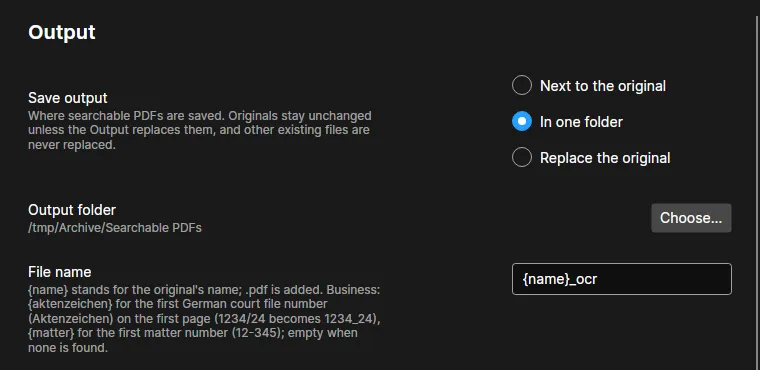
File name sets the pattern. {name} stands for the original’s name. When the PDFs go into their own folder, {name} alone keeps the original file names.
Queue every file in the folder
Open the folder in File Explorer or your Linux file manager, press Ctrl+A to select every file and drag the selection onto the Inklight window. You can also click Open files, go to the folder in the dialog, select all files and confirm.
Inklight queues files, not folders. A folder dropped on the window adds nothing, so open each subfolder and drop its files too. Inklight ignores file types it cannot read, so you can select a folder’s whole content even if it also holds Word or text files.
Each file becomes a Job in the Processing Queue. A file dropped again while its Job is still waiting or running is not queued a second time.
Let the queue run
Jobs run one at a time, in the order you added them. The list button at the left of the toolbar shows more of a long queue at once.
The Job being recognized shows its page progress and the waiting ones read Queued. Finished files show how many words are left to check. The bar at the bottom counts Jobs processing, Jobs queued and pages left. Once the first page is recognized, it also estimates the time left.
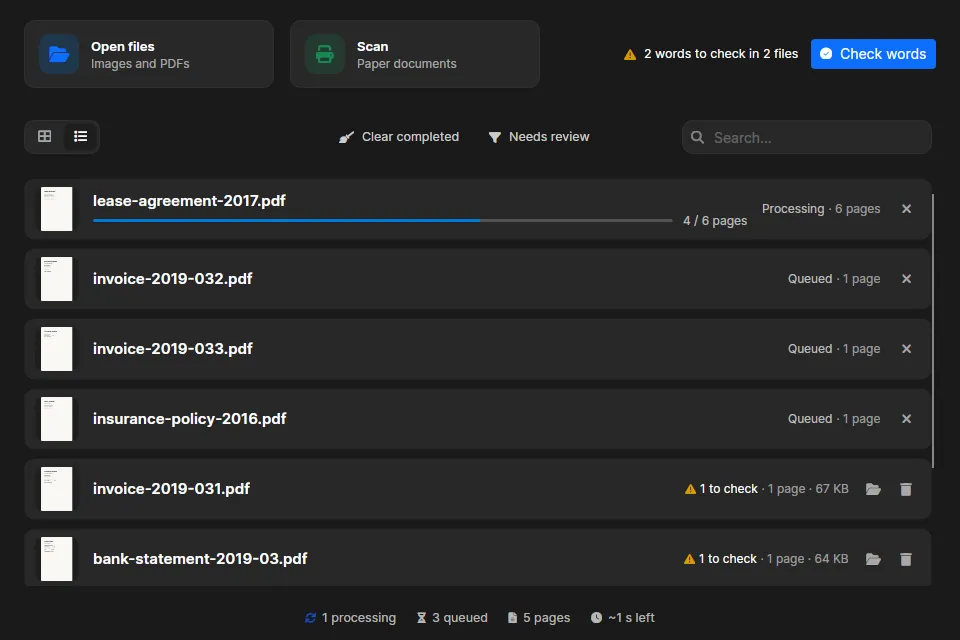
You can keep using the window while it runs and drop more files at any time. They join the end of the queue.
Recognition uses your graphics card when Inklight can (Vulkan on Linux, Direct3D on Windows), otherwise the CPU.
A PDF that already has text on every page is left alone and marked Already searchable. In a PDF that mixes text pages with scanned pages, Inklight recognizes only the pages without text.
If you quit Inklight or the computer restarts before the queue is through, the Jobs stay in the queue. Inklight carries on with them the next time it starts.
Check doubtful words once for the whole batch
As Jobs finish, the header adds up the words Inklight is unsure about, such as “2 words to check in 2 files”. These are numbers, words two readers disagreed on, IBANs whose checksum fails and words below the confidence threshold that no word list knows.
Click Check words to step through them across every finished file, worst first. Words with the same text form one group, so a name or a misreading that recurs across the backlog is decided once for every place it appears. Each decision rewrites that file’s searchable PDF in the background, between Jobs, so you can start checking while the rest of the queue still runs.
The Needs review button in the toolbar narrows the list to finished files that still have words to check. How to check and fix OCR errors in scanned PDFs explains the keys and the grouping in detail.
Clear the queue when you are done
Clear completed removes every finished file from the list. The originals and their searchable PDFs stay where they are.
The Free plan writes a small Inklight footer on every page. If you buy Personal or Business, Inklight rewrites the files still in the queue without it, so clear the queue only after you have decided. See the plans.
Hot folders for scans that keep arriving (Business)
Business adds hot folders. Open File › Preferences…, go to Hot folders and pick a folder with Add folder… Inklight counts the documents already in the folder and asks “Watch this folder?”. From then on it recognizes every document in it and every one that arrives later. Files you open yourself always go first. While a folder is watched, Inklight keeps running in the system tray.
Each hot folder can write into its own output folder. Under Originals you choose whether each original stays where it is, moves into a Processed subfolder or is deleted once its searchable PDF exists. Inklight watches the folder itself, not its subfolders.
Files from a hot folder are only converted. They do not appear in Check words. To review one, open it in the Processing Queue yourself.
Script it from the command line (Business)
Business also adds a command line, which suits a tree of subfolders or a scheduled job. inklight <file> <output.pdf> converts one file without the window, using the app’s licence and recognition preset. It refuses to overwrite an existing file, so the loops below skip every file that already has a searchable PDF and can simply be run again after an interruption.
Windows (PowerShell)
inklightc.exe is the console version, so PowerShell shows its messages. Get-ChildItem with -Recurse walks every subfolder:
Get-ChildItem -Path 'D:\Scans' -Filter *.pdf -Recurse |
  Where-Object { $_.BaseName -notlike '*_ocr' } |
  ForEach-Object {
    $out = Join-Path $_.DirectoryName "$($_.BaseName)_ocr.pdf"
    if (Test-Path -LiteralPath $out) { return }
    inklightc.exe $_.FullName $out
    if ($LASTEXITCODE -notin 0, 2) {
      Write-Warning "$($_.FullName): exit code $LASTEXITCODE"
    }
  }
Linux (AppImage)
Run the AppImage with the same arguments. Set app to where you saved it. find lists the PDFs in every subfolder:
app=~/Applications/Inklight-stable-linux-x86_64.AppImage
find ~/Scans -type f -iname '*.pdf' ! -iname '*_ocr.pdf' -print0 |
  while IFS= read -r -d '' f; do
    out="${f%.*}_ocr.pdf"
    [ -e "$out" ] && continue
    "$app" "$f" "$out" < /dev/null
    rc=$?
    [ "$rc" -eq 0 ] || [ "$rc" -eq 2 ] || echo "$f: exit code $rc" >&2
  done
The < /dev/null keeps the AppImage from reading the file list that find sends into the loop.
Exit code 0 means done and 2 means the file was already searchable and was copied unchanged. Both loops report every other code: 3 means the conversion failed, 4 that the command line needs Business, 5 that an argument was wrong, such as a missing output folder, and 6 that the PDF was written but an export was not.
Whichever way you run it, the scans stay on your computer. Download Inklight and start with one folder.