How to save OCR results as Word or Excel files
Save one scan as Word or Excel, or have every scan write them automatically, and see what the workbook and the document contain.
Updated
Inklight Personal writes an Excel workbook and a Word document from a scan, on your own computer. Every table it recognizes becomes its own worksheet, every cell keeps its text exactly as read, and the Word file keeps the headings, paragraphs, lists and tables in reading order. Both are editable, not pixel-identical. The searchable PDF beside them is the copy that looks like the paper.
The steps below use a fictional bank statement with a short supplies list, read on Windows or Linux. Nothing is uploaded.
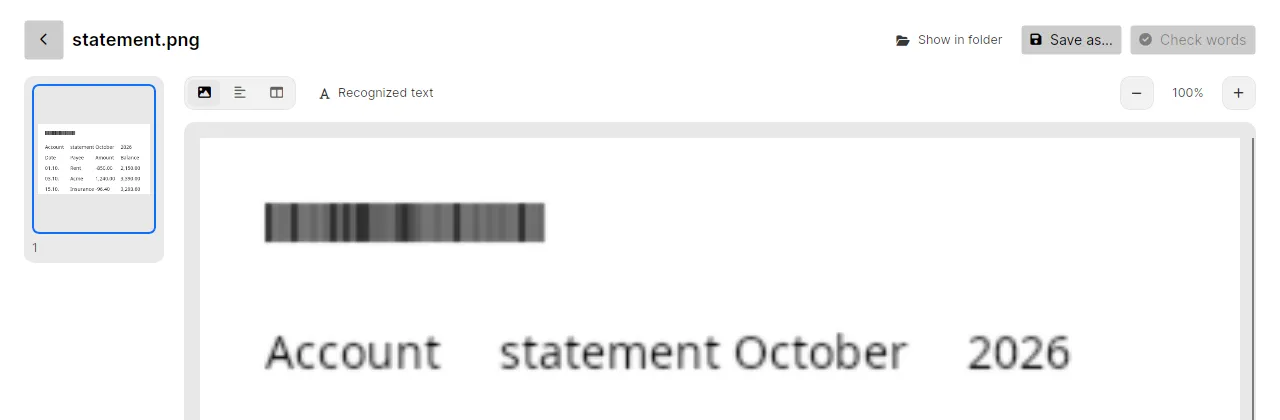
Recognize the scan
Drop the scan or PDF onto the Inklight window. It becomes a Job in the Processing Queue, and a searchable PDF appears beside the original when it is done. The free download starts with a seven-day trial, so you can try the exports before you buy Personal.
Headings and tables come from a layout-aware preset. A preset without layout reads each page as plain paragraphs. The Word file then has no headings or tables, and there is no Excel file at all.
Save one document as Excel or Word
Open the document from the queue and click Save as… at the top right. The save dialog offers Searchable PDF, Text (.txt), Markdown (.md), Word (.docx) and Excel (.xlsx); pick the format in the file type list and choose where it goes.
If the dialog’s title reads “Save a copy · Headings and tables need a layout-aware preset”, the document was read without layout, and the Word file will be plain paragraphs.
Write Excel and Word after every file
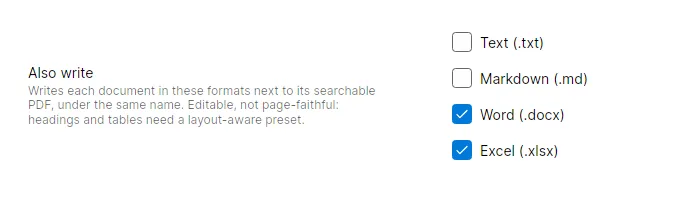
To get the files without asking each time, open Preferences › Output › Also write and tick Word (.docx), Excel (.xlsx) or both. From then on, every finished document gets them beside its searchable PDF, under the same name. When you correct a word later, Inklight writes them again with your correction.
What the Excel workbook contains
One worksheet per table, named after the page and the table’s place on it: p1-t1 is the first table on page 1, p1-t2 the second. Cells sit at the row and column where the table had them; a cell that spanned several columns becomes a merged range.
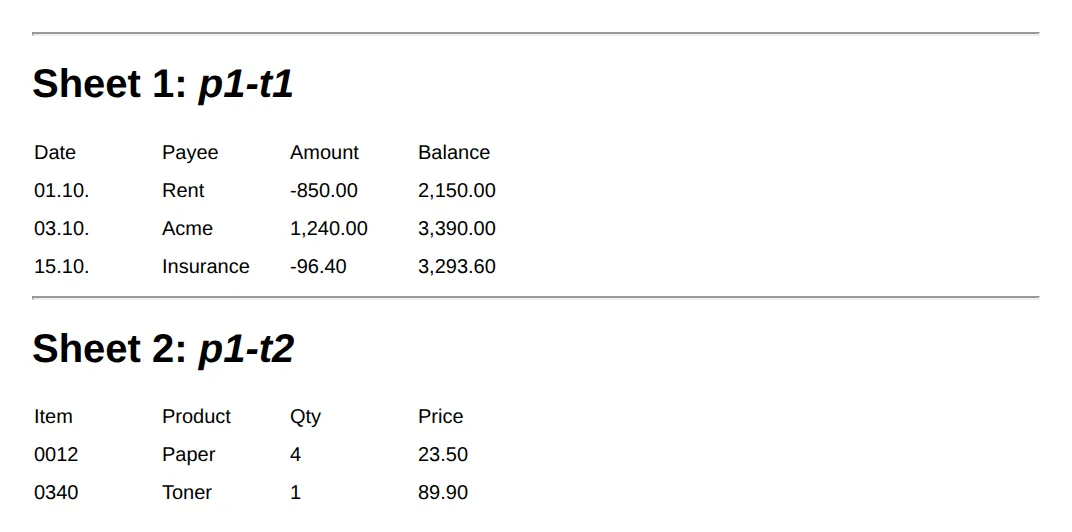
Every cell is text. 0012 stays 0012 and 01.10. stays a string instead of turning into a date, but -850.00 is not a number yet either. To add up a column, convert that column to numbers in your spreadsheet first.
A document without a table writes no Excel file. Save as… then says “No tables found”, and an automatic export shows the same on the Job.
What the Word document contains
The title becomes Heading 1, section headings Heading 2, paragraphs Normal text and list items a bulleted list. Tables become Word tables, pictures are cropped from the scan and placed where they stood, and your corrections are in the text.
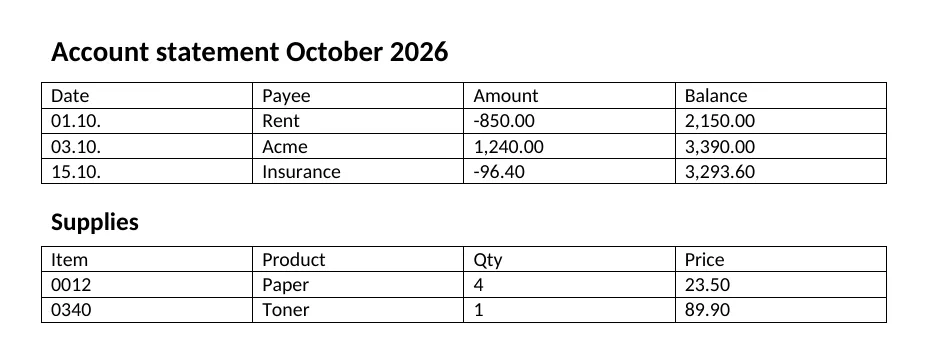
What it does not copy is the page itself. Columns, fonts, spacing and page breaks are left behind, and running headers and footers are dropped. You get a document to edit and reuse, not a replica of the letter. For a copy that looks exactly like the paper, keep the searchable PDF.
How this compares with FineReader and Readiris
ABBYY FineReader PDF converts PDFs into Word, Excel and more than 15 other formats, singly or in batches, and ABBYY promises “document layout and structure retention” (ABBYY: create and convert PDFs). Readiris PDF 27 converts PDFs into editable Word, Excel and PowerPoint files, and IRIS says its engine “preserves complex tables, formatting, and fonts” (Readiris PDF). Both run on Windows and macOS, not Linux; both pages were fetched on 22 October 2026.
So the trade-off is this. Those two aim to rebuild the page in Word. Inklight writes the content, after you have checked the words it doubted, and leaves the page’s look to the searchable PDF. It also runs on Linux and writes the same files from hot folders and the command line on Business. For more on all three, see the best OCR software for searchable PDFs, or compare the plans.