Best OCR software for searchable PDFs, 8 tools compared
Eight desktop OCR tools that turn scans into searchable PDFs on Windows and Linux, with price, platform, engine and the catch for each, from vendor docs.
Updated
A searchable PDF is a scan with an invisible text layer on top, so Ctrl+F and your document search find the words on the page. Every tool below writes that layer on your own computer. They differ in price, platform, the OCR engine behind them, and what happens when the engine misreads a word.
We make Inklight, so it is on this list and we say where it falls short. The other entries cite the vendor’s own documentation, fetched on 22 October 2026. Prices change; the links lead to the current pages.
The short version
| Tool | Platforms | Price | Catch | Engine |
|---|---|---|---|---|
| Inklight | Windows, Linux | Free; US$99 or US$249 once | Latin script only, no macOS | Recognition models, local |
| ABBYY FineReader PDF | Windows, macOS | from €99 a year | Subscription, no Linux | ABBYY |
| Adobe Acrobat Pro | Windows, macOS | Subscription | No Linux, price not on the page | Adobe |
| OCRmyPDF | Linux, Windows, macOS | Free, open source | Command line, hard Windows install | Tesseract |
| NAPS2 | Windows, Linux, macOS | Free, open source | Built for scanning first | Tesseract |
| gImageReader | Windows, Linux | Free, open source | Manual work per document | Tesseract |
| PDF-XChange Editor | Windows | Free; from €57 once | Windows only | Tesseract, ABBYY in Plus |
| Readiris PDF | Windows, macOS | from $79 once | No Linux, needs internet | IRIS |
Inklight
Inklight is a desktop app for Windows and Linux that turns scans and PDFs into searchable PDFs on your machine. You drop files onto the window, each one becomes a Job in the Processing Queue, and a searchable copy appears beside the original. Recognition runs on the CPU or on your graphics card; the models download once and are reused offline.
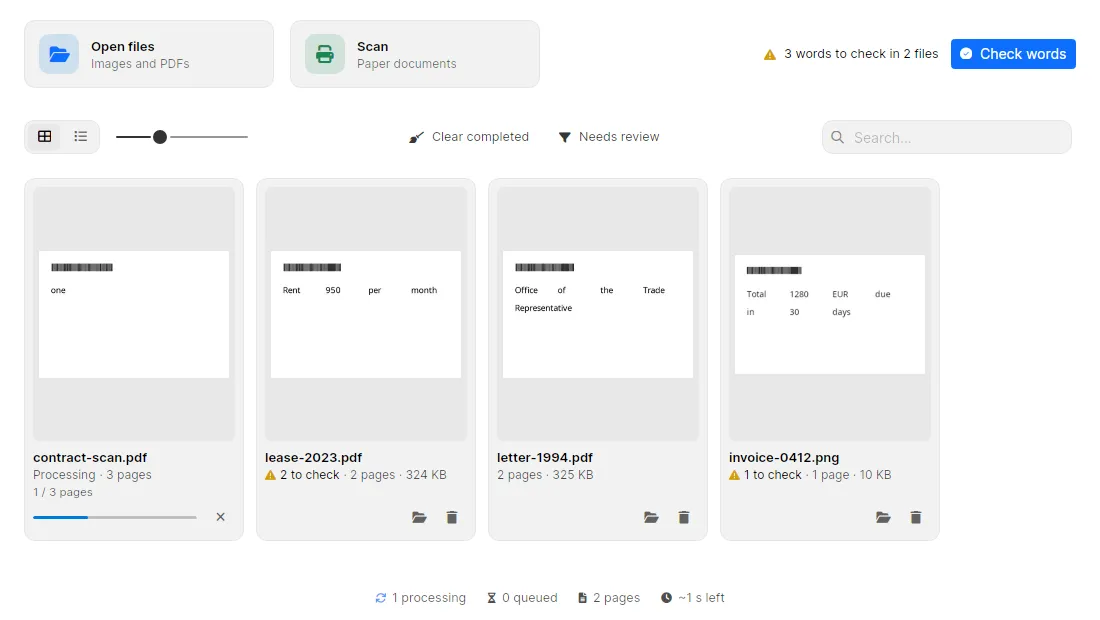
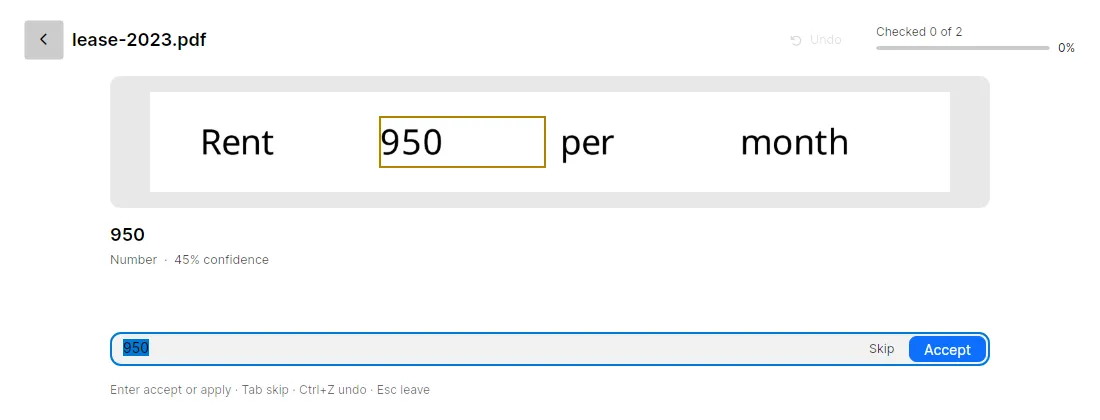
The difference is the Check pass. Other tools write their best guess into the text layer and move on. Inklight outlines the words it is unsure about, such as numbers, words below its confidence threshold that no word list knows, and IBANs whose checksum fails. Check words steps through them, worst first, and you accept or correct each one with a keystroke.
The Free plan has no page or time limit and writes a small Inklight footer on every page. Personal is US$99 once for one user on up to three devices and adds exports beside the searchable PDF: tables to Excel, a worksheet per table, and letters and reports to Word with their headings, lists and tables, editable, not pixel-identical. Business is US$249 per seat and adds hot folders and a command line, both of which write the same exports. Both include all updates. See the plans.
The catch is that Inklight reads Latin-script print only, with English, German, French, Spanish, Italian and Dutch as the tested languages. It does not read handwriting, Cyrillic, Arabic or CJK, and there is no macOS version.
Download Inklight for Windows (Microsoft Store) or Linux (AppImage).
ABBYY FineReader PDF
FineReader is the long-standing commercial OCR suite. The Windows edition reads 198 recognition languages and converts scans to searchable PDF, PDF/A and PDF/UA, according to the FineReader PDF 16 specification. ABBYY states that documents are processed and stored locally and only licence activation contacts its servers (support article).
Pricing is a subscription. The pricing page lists Standard at €99 a year or €16 a month in the EU, and the Mac edition at €69 a year. There is no Linux desktop app; Linux exists only as the FineReader Engine SDK for developers.
Pick it if you need a language Inklight does not read, or editing inside the PDF itself, and a yearly fee is acceptable. ABBYY FineReader alternative puts its price, platforms, languages and review step beside Inklight’s.
Adobe Acrobat Pro
Acrobat Pro adds a text layer through All tools, Scan & OCR, Recognize Text, with a page range and a language choice. Adobe’s help page says the tool “creates a searchable text layer in your PDF” and advises reviewing the output for errors. OCR is in the Pro plan, not in Standard (plans page).
Acrobat runs on Windows and macOS (technical requirements). It is subscription only; the perpetual licence ended with Acrobat 2020, and the one-time Acrobat Pro 2024 gives three years of access with security updates only. Adobe loads the current price with a script, so we cannot quote it from the page.
Pick it if you already pay for Acrobat. For OCR alone, it is the most expensive route here.
OCRmyPDF
OCRmyPDF is an open-source command-line program that adds a text layer to scanned PDFs with the Tesseract engine, writing PDF/A-2b by default (introduction). It runs on Linux, Windows, macOS and FreeBSD under the Mozilla Public License 2.0 (README). On Debian and Ubuntu, apt install ocrmypdf installs it (installation).
Its documentation lists the limits it inherits from Tesseract. Accuracy may not match commercial OCR, it cannot read handwriting, it “may detect gibberish and report it as OCR output”, and results are poor unless you pass the document’s languages with -l. On Windows there is “no single command” that installs it with its dependencies; Tesseract and Ghostscript are separate installs, and the Chocolatey Tesseract ships only English (languages).
Pick it for scripts, servers and batch jobs on Linux. There is no window and no step where you review what Tesseract wrote. Tesseract alternative compares the engine itself with Inklight.
NAPS2
NAPS2 (Not Another PDF Scanner) is a free, open-source scanning app for Windows, macOS and Linux under GPL 2.0 (README). With “Make PDFs searchable using OCR” ticked, every PDF it saves gets a Tesseract text layer, and on imported PDFs it leaves pages that already have text alone (OCR documentation). Language packs download inside the app on first use, in a Fast or a slower Best mode.
NAPS2 is built around the scanner, with OCR as a save option. Its documentation lists two limits: it cannot save OCR results straight to a text file, and editing pages invalidates OCR that was run ahead of time.
Pick it if your main job is scanning paper on any desktop OS and a text layer added when saving is enough. NAPS2 alternative compares its scanning and OCR with Inklight’s.
gImageReader
gImageReader is a Gtk/Qt front end for Tesseract under GPL v3, packaged for Windows and most Linux distributions (README). It takes PDFs, images, scanner input and screenshots, and its “PDF with invisible text overlay” export keeps the source image as background with selectable text on top (manual). Languages are installed in-app through Manage languages (FAQ).
The workflow is per document: open, select regions or let it detect the layout, recognize, correct in the text pane, export. The FAQ notes that PDFs are rendered at 300 dpi before OCR, scanning on Windows uses TWAIN only, and mismatched Tesseract and tessdata versions can crash it.
Pick it for a few documents where you want to see and fix the recognized text before export, for free.
PDF-XChange Editor
PDF-XChange Editor is a Windows PDF editor with OCR in the Convert tab. Its default engine, Tesseract, “adds an invisible text layer over the original image-based text”; the Enhanced engine, which is ABBYY FineReader, needs Editor Plus (manual, knowledge base). The free version is free for private and commercial use; licensed features add a watermark (demo limitations).
Licences are perpetual with a year of maintenance, starting at €57 for Editor and €72 for Editor Plus per user, plus VAT (comparison chart). The current release needs Windows 10 or later (downloads); there is no Linux or macOS version.
Pick it if you want one Windows program for editing, annotating and OCR, and you do not need Linux.
Readiris PDF
Readiris PDF 27 from IRIS, a Canon company, runs on Windows 10 and 11 and macOS 14 or later and reads 138 OCR languages, including Arabic, Chinese, Japanese and Korean (product page). It exports searchable PDF, Word, Excel and PowerPoint; PDF/A is in the Elite edition.
The licence is perpetual, Essential at $79 and Elite at $149 for one PC or Mac in the US store, with no monthly fee. The requirements list an internet connection without saying what it is for, and there is no Linux version.
Pick it for a one-time purchase with wide language coverage on Windows or Mac.
How to choose
Need Linux with a window to work in? Inklight, NAPS2 or gImageReader. Need Linux for scripts? OCRmyPDF.
Need a script Inklight does not read, such as Cyrillic, Arabic or CJK? FineReader, Readiris or a Tesseract tool with the right language pack.
Need to trust the numbers in the text layer? Only Inklight shows you which words the engine doubted. Everywhere else, you find the misread total when a search misses it.
Need the tables of a statement or price list in Excel, or a letter you can edit in Word? Inklight Personal writes both beside the searchable PDF, after your corrections, on Windows and Linux. They are editable, not pixel-identical; the searchable PDF keeps the page as scanned. How it works, step by step: Scanned tables to Excel, scanned letters to Word.
For the step-by-step on Windows and Linux, read Make scanned PDFs searchable offline.