Searchable PDF converter: online or on your PC?
Online converters upload your scan and cap pages or add watermarks. Desktop converters keep the scan local. What each limits, and how to batch a folder.
Updated
A searchable PDF converter reads the pages of a scanned PDF with OCR and writes the recognized words back into the file as an invisible text layer. The scan looks as before; Ctrl+F now finds the words. Every converter does this one job. They differ in where the file goes, how many pages they take at once, and what they do when a word is misread.
The short version: an online converter is the quickest way to do one file you do not mind uploading. A desktop converter is the way to do a folder, a confidential file, or the same job every week.
Online converters
The file is uploaded, recognized on the vendor’s servers and offered back for download. Three that rank for this task, with the limits their own pages state:
- OCR.space turns a scan into a searchable PDF for free, but the free version takes only the first three pages and adds a watermark to every page; the download link lasts one hour, after which the file is removed from its servers.
- Sejda runs its OCR tool in the browser with page and hourly limits on the free plan; the paid plans take OCR documents up to 100 pages and uploads up to 500 MB, from €5.50 for a week pass.
- iLovePDF lists OCR PDF among its free tools with “limited document processing”; unlimited processing is Premium, €9 a month or €59 a year.
Common to all three: the document leaves your computer. For a receipt that is fine. For a client’s bank statement, a medical record or a contract under NDA, it may not be, and the vendor’s retention policy decides for how long the copy exists. The page caps also mean a 40-page scan becomes several uploads, or a subscription.
Desktop converters
The file stays on your machine, and the program runs as often as you like. The trade is a one-time install.
- Inklight (Windows and Linux, free plan without page or time limit) is built for the folder case: drop files or a whole folder onto the window, and each becomes a Job in the Processing Queue that is recognized in the background, one after the other. The searchable PDF lands beside each original, or in one folder of your choice.
- OCRmyPDF (command line, open source) adds a Tesseract text layer to one PDF per invocation and suits scripts and batch jobs.
- NAPS2 (Windows, macOS, Linux, open source) is a scanning program that can add a Tesseract text layer to every PDF it saves. NAPS2 alternative compares it with Inklight.
- Adobe Acrobat Pro and ABBYY FineReader are the commercial suites, both on subscription; the differences are in the best OCR software for searchable PDFs.
Convert a folder with Inklight
- Download Inklight for Windows or Linux and start it. The first file you drop triggers a one-time download of the recognition models; after that, recognition runs offline.
- Drag the folder onto the window. Every PDF, TIFF, PNG, JPEG, WebP, BMP, HEIC, AVIF and JPEG XL file in it becomes a Job. A PDF that already has text on every page is left alone and marked Already searchable.
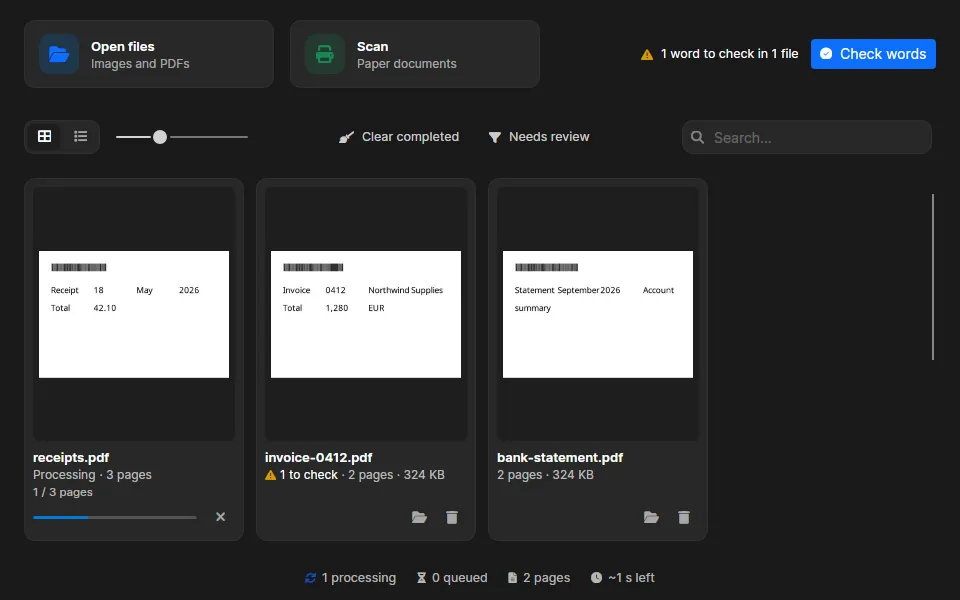
- Wait. Jobs are recognized one after the other, so you can keep adding files, and the folder icon on a finished card opens the output.
By default the searchable PDF is written beside the original as <name>_ocr.pdf. To collect every output in one folder instead, or to change the name pattern, open Preferences with the gear button and change Save output.
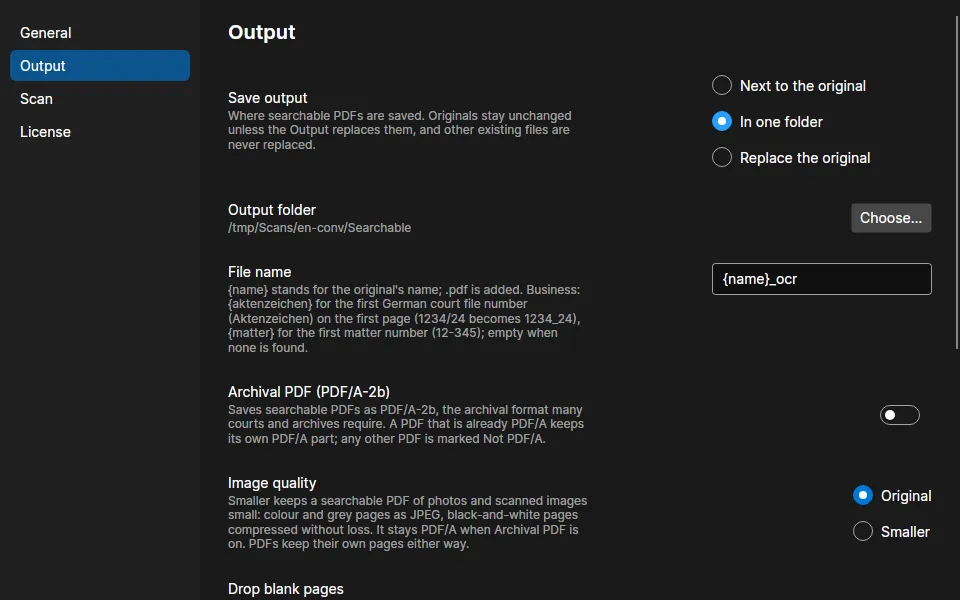
The original is never changed. The Free plan writes a small Inklight footer on each page; Personal and Business write clean files. See the plans.
The part no converter advertises
OCR misreads words. A total of 1,280 read as 1,230 looks right on the page, and the search for the right number misses it. Online converters hand you the file and move on. Inklight outlines the words it is unsure about, numbers, words below its confidence threshold that no word list knows, and IBANs whose checksum fails, and the Check pass steps through them, worst first, so you accept or correct each with a keystroke. How that works: Fix OCR errors in a scanned PDF.
Inklight reads Latin-script print, with English, German, French, Spanish, Italian and Dutch as the tested languages. It does not read handwriting, and there is no macOS version. For the first run, step by step: How to make a PDF searchable on Windows and Linux.