Image to searchable PDF: JPG, PNG, HEIC and more
Turn a photo or scanned image into a searchable PDF on Windows or Linux, without uploading it. JPG, PNG, TIFF, HEIC, AVIF and JPEG XL.
Published
To turn an image into a searchable PDF, a program reads the picture with OCR and writes a PDF with the image as its page and the recognized words as an invisible text layer over it. The page looks like your photo or scan, and Ctrl+F finds the words. Inklight does this on your own computer. Drop a JPG, PNG or phone photo onto the window, and a searchable PDF appears beside it.
How it works in Inklight
- Download Inklight for Windows or Linux and start it. The first file you drop triggers a one-time download of the recognition models; after that, recognition runs offline.
- Drag the images onto the window, or pick them with Open files. Each one becomes a Job in the Processing Queue and is recognized in the background.
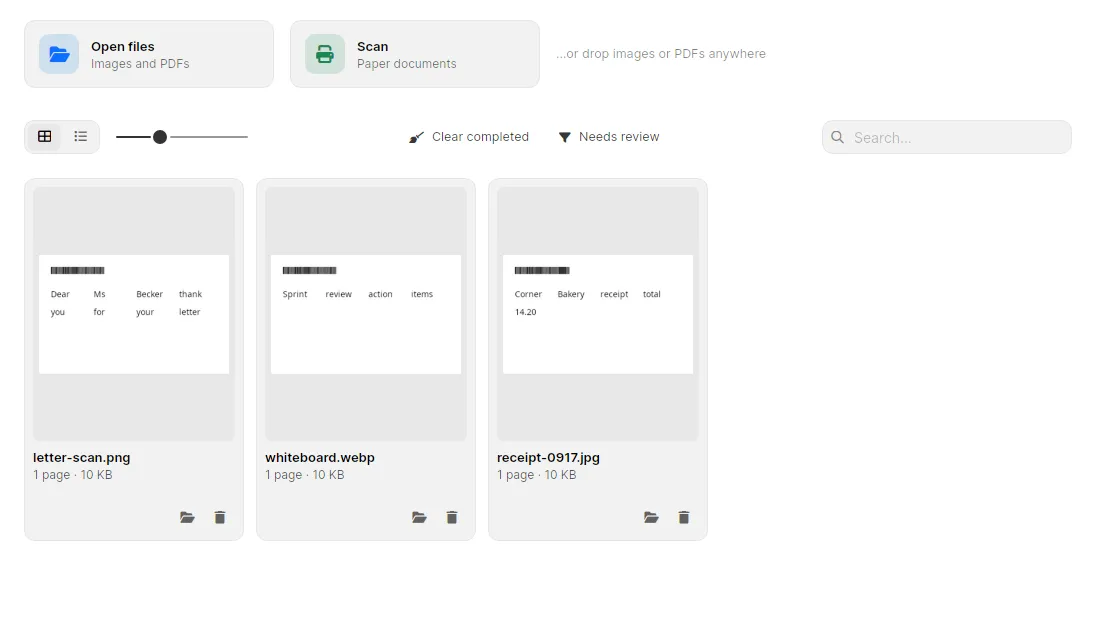
- When a Job is done, its searchable PDF sits beside the image as
<name>_ocr.pdf. The image itself is not changed. If that name is already taken, Inklight writes<name>_ocr (1).pdfand leaves the existing file alone. - When the queue header shows words to check, click Check words. The Check pass steps through the words Inklight is unsure about, worst first, and you decide each one. Your corrections go into the PDF’s text layer.
Several images that belong together, such as the pages of a letter photographed one by one, become one PDF with Combine. Select them in the queue, right-click and choose Combine into one PDF, or press Ctrl+K. The result is <name>_combined.pdf beside the first image. It follows queue order, each page shows the file it came from, and the images stay untouched.
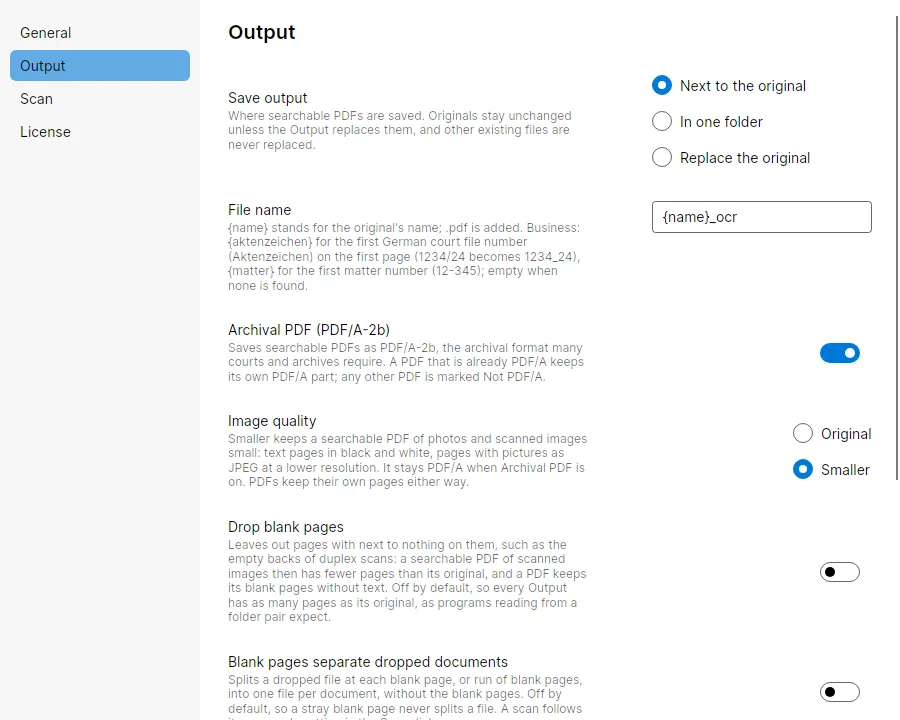
For a smaller file, set Image quality to Smaller in Preferences › Output. Colour and grey pages are stored as JPEG and black-and-white pages losslessly. The same section sets where the PDF goes, next to the original or in one folder you choose, and the file name pattern, {name}_ocr by default.
What you get
- JPEG, PNG, TIFF (multi-page too), WebP, BMP and GIF, on every plan.
- HEIC and AVIF through the system decoder. That is the HEVC or AV1 Video Extensions on Windows, or a libheif that can decode HEVC or AV1 on Linux; Inklight ships neither.
- JPEG XL with the bundled libjxl (x64 only).
- The image as the page, with the recognized text underneath it for search and copy.
- Combine several images into one searchable PDF, on every plan.
- Image quality Smaller for small PDFs from photos, still PDF/A when Archival PDF is on.
- Free writes a small footer on every page. Personal and Business write clean files; see the plans.
Limits
Inklight reads Latin-script print, with English, German, French, Spanish, Italian and Dutch as the tested languages. It does not read handwriting, Chinese, Japanese or Korean. It runs on Windows and Linux; there is no macOS version, and no cloud service. A photo at a steep angle or in poor light reads worse than a flat scan; the words Inklight is unsure about are outlined for the Check pass.
Related guides
- Scanner OCR software: scan to a searchable PDF for paper you have not scanned yet.
- PDF/A OCR: searchable PDFs for the archive when the file has to be PDF/A.
- Tesseract alternative compares Inklight with the Tesseract engine for images and scans.