PDF/A OCR: searchable PDF/A-2b from scans
Make scans searchable and save them as PDF/A-2b on Windows or Linux. Which files become PDF/A, which keep their part, which are marked Not PDF/A.
Published
PDF/A is the archival form of PDF. A PDF/A file carries everything it needs to display the same way in decades. Courts and archives often ask for it, usually as PDF/A-2b, where the “b” promises that the page looks right. OCR adds a text layer, so the archived scan can be searched. Inklight writes both at once with one switch, Archival PDF, on your own computer.
How it works in Inklight
- Download Inklight for Windows or Linux and start it.
- Open Preferences with the gear button and, under Output, turn on Archival PDF (PDF/A-2b). It is off by default.
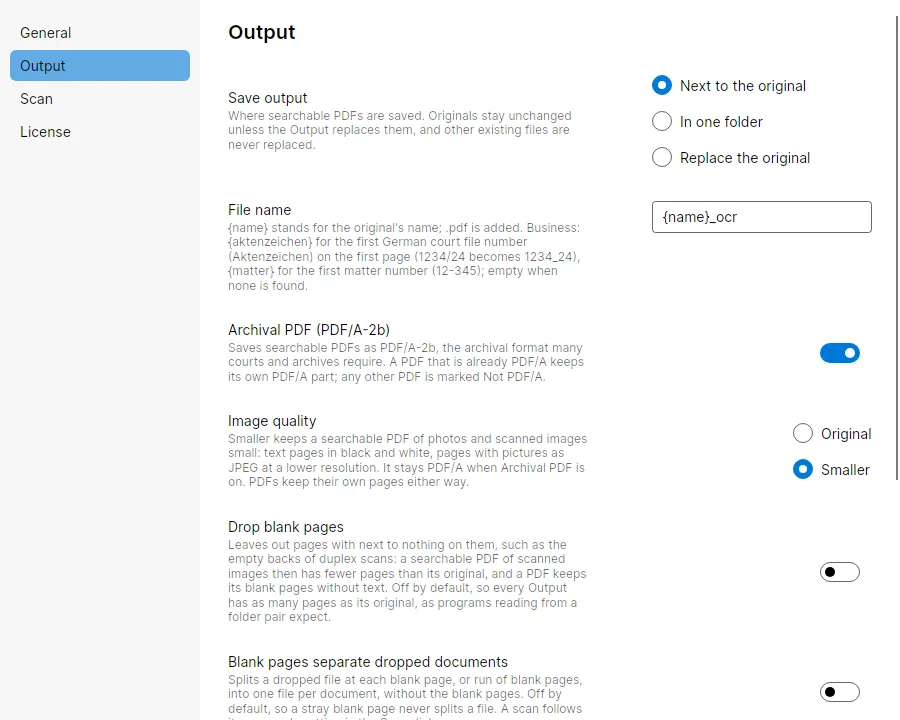
- Drop scans and PDFs onto the window. Each becomes a Job in the Processing Queue, and each searchable PDF is written as PDF/A where its original allows.
What keeps PDF/A and what does not
With Archival PDF on, the original decides:
- An image or a scan (TIFF, PNG, JPEG and the other image formats) becomes PDF/A-2b, with or without the Free footer.
- A PDF original that claims PDF/A keeps its part. A PDF/A-1b stays PDF/A-1b, a PDF/A-2b stays PDF/A-2b.
- Any other PDF original is written as usual, and its Job is marked Not PDF/A. Its pages are never re-rendered to make it conform.
So a scanner that saves straight to PDF without PDF/A gives you a file marked Not PDF/A. Scanning to TIFF, or with Inklight’s own File › Scan, gives you PDF/A-2b.
The switch applies to every PDF Inklight writes from an image after you turn it on, including the rewrite after a correction in the Check pass. A PDF written before you turned it on stays as it is on disk. With the switch on, Save as on its detail page writes a PDF/A-2b copy of it.
The Not PDF/A marker shows on the card, in the list and on the detail page. Its tooltip tells you to convert the original to PDF/A first where PDF/A is required. A converted original that claims PDF/A then keeps its part when Inklight makes it searchable.
What you get
- PDF/A-2b for every image and scan, on every plan.
- A PDF original keeps its own pages. Inklight never re-renders them, so its text and drawings stay as they were.
- Image quality Smaller keeps PDFs from images small and still PDF/A.
- Filing checks next to the marker. A Job whose output is larger than the court filing size limit shows a size warning. The limit is one number in Preferences › Output, 35 MB by default; beA takes 200 MB. A PDF made from images also offers Shrink to fit, which writes it again in smaller steps and stops at the first one under the limit. A Job carrying JavaScript, embedded files, encryption or form fields is marked Not filing-safe, naming which. Inklight strips nothing, so you fix those in a PDF editor.
- Free writes a small footer on every page. Personal and Business write clean files; see the plans.
Limits
Inklight writes PDF/A-2b for images and keeps a PDF/A original’s own part; it does not turn any other PDF into PDF/A, so use a PDF editor for that. Recognition covers Latin-script print, with English, German, French, Spanish, Italian and Dutch as the tested languages, and no handwriting. Inklight runs on Windows and Linux, with no macOS version and no cloud service.
Related guides
- Image to searchable PDF: the image formats that become PDF/A-2b.
- Scanner OCR software: scan paper straight into the queue.
- The best OCR software for searchable PDFs.