Scanner OCR software: scan straight to searchable PDF
Scan paper from a flatbed or feeder into a searchable PDF on Windows or Linux. Both sides, blank pages dropped, pages straightened, no upload.
Published
Scanner OCR software takes paper from the scanner and gives you a PDF you can search. The software that came with a scanner often stops at a picture of the page, with OCR as a separate step or a paid add-on. Inklight does both in one window. File › Scan reads the pages from your scanner, and the scan goes into the Processing Queue to become a searchable PDF, on every plan.
How it works in Inklight
- Download Inklight for Windows or Linux and start it.
- Choose File › Scan…, press Ctrl+Shift+S, or click the Scan card at the top of the queue.
- Pick the scanner: one on this machine (WIA or TWAIN on Windows, SANE on Linux) or one on the network (eSCL). Then the source, flatbed, feeder or feeder both sides, the colour, the resolution from 200 to 600 dpi and the paper size. Each scanner remembers its settings.
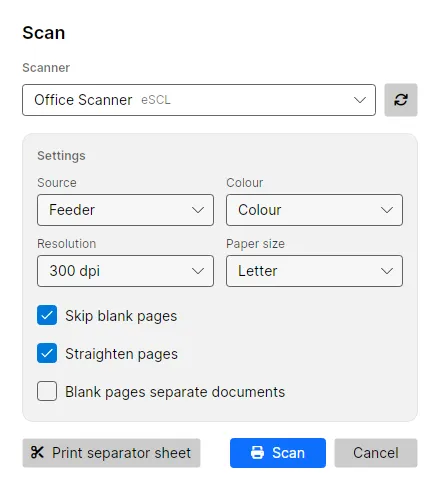
- Click Scan. A counter in the dialog shows each page as it arrives, and Cancel stops the scanner and keeps nothing. The pages become one TIFF in the Scans folder, which is queued like any file you drop and recognized in the background. The searchable PDF is written beside it.
The Scans folder is Inklight Scans in your Documents folder. You can pick another one under Preferences › Scan. If the scanner stops with an error after some pages, Inklight keeps those pages, queues them, and tells you how many it got.
Scan a stack of several documents
A feeder holds more than one letter or invoice at a time. Two ways split a stack into one PDF per document:
- Separator sheets. Click Print separator sheet in the Scan dialog and print the page it opens. Put a copy between the documents in the stack. When the scan is recognized, Inklight splits it at each sheet and leaves the sheets out, so you get
<name>_1,<name>_2and so on. - Blank pages. Tick Blank pages separate documents and put a blank sheet between the documents. A scan of both sides splits where two or more blank pages follow each other, since the back of a one-sided letter is blank too. Other sources split at each blank page. Skip blank pages is unavailable while this box is ticked, and each scanner remembers the choice.
What you get
- Scanning on every plan, Free included.
- Flatbed, feeder, or both sides of each sheet in one pass, where the scanner has them.
- Blank pages skipped and pages straightened, both on by default.
- One TIFF per scan, then one searchable PDF, with a Smaller output. With Archival PDF on, that PDF is PDF/A-2b.
- The Check pass for the words Inklight is unsure about, worst first.
- Free writes a small footer on every page. Personal and Business write clean files; see the plans.
Limits
On Linux, USB scanners need SANE (libsane); network scanners work without it. Recognition covers Latin-script print, with English, German, French, Spanish, Italian and Dutch as the tested languages, and no handwriting. Inklight runs on Windows and Linux, with no macOS version and no cloud service.
Related guides
- Image to searchable PDF for scans you already have as JPG, PNG or TIFF.
- PDF/A OCR when the scans go to a court or an archive.
- NAPS2 alternative, the free scanner app with OCR as a save option, compared with Inklight.