Local OCR: what runs offline and what goes online
Inklight recognizes scans on your own computer after a one-time model download. Here is exactly when it connects and what it sends.
Published
Local OCR means the recognition runs on your own computer, so scans of contracts, bank statements or medical letters never reach someone else’s server. Inklight works this way on Windows and Linux. There is no account, no upload and no cloud processing path. It does use the network for a few things, and this page lists all of them.
How it works in Inklight
Install Inklight from the Microsoft Store or as the Linux AppImage through Download, then drop a scan on the window. The first time, Inklight asks “Download recognition models?” and shows the size. The first file’s card shows the progress, and recognition starts when the download ends.
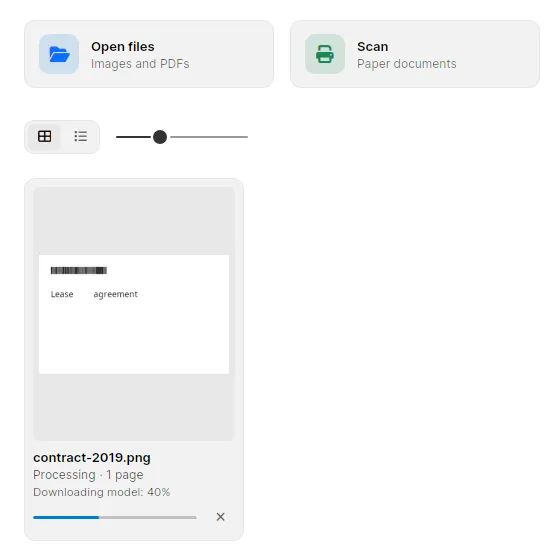
Inklight keeps the models and reuses them for every later file. From then on you can disconnect: recognition, the Check pass and writing the searchable PDF all happen on your machine. Your scans, PDFs, recognized text and corrections are stored locally.
The speed measurement stays local too. Before the first Job, Inklight times its recognition presets on your own CPU and graphics card and picks one from the result. When you remove a document from the queue, Inklight deletes its recognized text and thumbnails. The original and any searchable PDF already written stay where they are.
What goes online
Inklight reaches the network for exactly four things:
- Model downloads. The recognition models, fetched once on first use.
- Licence checks. Checking that your licence is valid.
- Update checks. Looking for a newer version of Inklight.
- Error reports. Diagnostic reports when something goes wrong. They never include document contents.
These connections may carry technical data such as the app version, operating system and hardware details, as the privacy policy explains. None of them carries your documents or their recognized text.
You can check and steer these connections yourself. Error reports include recent log entries, and you can review and edit a problem report before Help › Report a Problem sends it. On the Linux AppImage, turning off Automatically check for updates under File › Preferences › General stops the automatic update check; on Windows the Microsoft Store handles updates. File › Preferences › License lists the devices activated with your key, and Refresh license runs a licence check when you click it.
What you get
- Recognition on the CPU, or on the graphics card through Vulkan on Linux or Direct3D on Windows.
- PDF, TIFF, PNG, JPEG, WebP, BMP, GIF, HEIC, AVIF and JPEG XL as input, and a searchable PDF beside each original.
- Scanning from WIA, TWAIN, SANE and eSCL scanners on every plan.
- The Check pass for numbers, unsure words and IBANs with a failing checksum.
- Word, Excel and Markdown exports with Personal; hot folders and a command line with Business.
- The Free plan writes a small footer on every page; Personal and Business write clean files. See the plans.
Limits
- The first run needs a connection for the model download.
- “Local” does not mean “never connects”: licence checks, update checks and error reports still use the network.
- Latin-script printed text only. No handwriting, no Cyrillic, no CJK.
- Windows and Linux on x64. No macOS.
Related guides
- OCR software for Linux covers the AppImage, SANE and Vulkan.
- OCR on Windows 11 covers the Microsoft Store build.
- Tesseract alternative compares Inklight with the free local OCR engine.
Download Inklight and keep your scans on your machine.