OCR software for Linux: searchable PDFs on Ubuntu
Make scanned PDFs and images searchable on Ubuntu or any x64 Linux with one AppImage, SANE scanners and Vulkan on the graphics card.
Published
On Linux, OCR usually means a terminal: Tesseract for single images, OCRmyPDF for PDFs, a shell loop for a folder. Inklight is a desktop app for the same job. It runs on Ubuntu and other x64 distributions from one AppImage, reads scans and PDFs on your machine and writes a searchable PDF beside each one.
How it works in Inklight
Download the AppImage from Download, mark it executable and start it. In the file manager that is the “allow executing as program” option in the file’s properties; in a terminal it is chmod +x, as the AppImage quickstart shows. There is no package to install and no root access needed.
The first file you drop asks to download the recognition models once. After that, recognition runs offline. Each file becomes a Job in the Processing Queue and gets a searchable PDF named {name}_ocr.pdf next to the original.
To scan paper directly, choose File › Scan… or the queue’s Scan card. Inklight lists SANE scanners on the machine and eSCL scanners on the network.
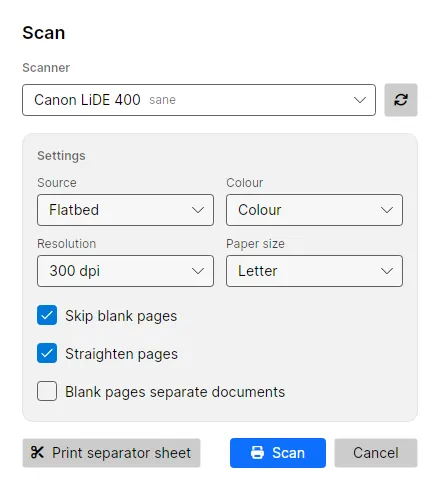
A USB scanner needs SANE, the Linux scanner library (libsane; on Ubuntu, the libsane1 package). Network scanners that speak eSCL work without it.
Each scan becomes one TIFF in the Scans folder, Inklight Scans in your Documents folder by default, and joins the queue like a dropped file. File › Preferences › Scan changes that folder.
Help › Check for Updates tells you when a newer AppImage is ready, on every plan. Inklight also checks on its own unless you turn off Automatically check for updates under File › Preferences › General. With Business, Start Inklight at login on the same page adds an autostart entry that runs the AppImage, so hot folders are watched again after a restart.
To see the text layer, open the result in any PDF viewer and press Ctrl+F, or print it in a terminal with pdftotext, part of Poppler (see its manual page):
pdftotext invoice-0412_ocr.pdf -
What you get
- PDF, TIFF, PNG, JPEG, WebP, BMP, GIF, HEIC, AVIF and JPEG XL as input. HEIC and AVIF need a libheif that can decode HEVC or AV1; JPEG XL is built in.
- Recognition on the CPU, or on the graphics card through Vulkan. Inklight measures the machine on first start and suggests a preset.
- Scanning from SANE and eSCL scanners, flatbed or feeder, both sides, with blank pages skipped (every plan).
- The Check pass for numbers, unsure words and IBANs with a failing checksum before you rely on the text.
- Word, Excel and Markdown exports with Personal; plain text on every plan.
- Hot folders and a command line for scripts and cron jobs with Business: run the AppImage as
inklight <file> <output.pdf>. - The Free plan writes a small footer on every page; Personal and Business write clean files. See the plans.
Limits
- x64 only. There is no ARM build and no macOS version.
- Latin-script printed text: English, German, French, Spanish, Italian and Dutch are the tested languages. No handwriting, no Cyrillic, no CJK.
- Inklight watches a hot folder itself, not its subfolders.
- The models download once, so the first run needs a connection.
Related guides
- OCR on Windows 11 covers the Microsoft Store build.
- Local OCR lists exactly when Inklight goes online.
- Tesseract alternative compares Inklight with Tesseract on the command line.
Download the AppImage and drop your first scan on the window.