OCR on Windows 11: make scans searchable offline
Make scanned PDFs and photos searchable on Windows 11 with an app from the Microsoft Store, WIA and TWAIN scanners and Direct3D on the graphics card.
Published
OCR on Windows 11 usually means one of two jobs: copying text out of a picture, or making scanned PDFs searchable so Ctrl+F finds their words. Inklight does the second. It installs from the Microsoft Store, recognizes the pages on your PC and writes a searchable PDF beside each original.
How it works in Inklight
Install Inklight from the Microsoft Store through Download. The Store keeps it updated. Start it and drop a scan on the window; the first file asks to download the recognition models once, and after that recognition runs offline.
Each file becomes a Job in the Processing Queue. When it is done, {name}_ocr.pdf sits next to the original, which stays unchanged. Open it in Edge or any PDF viewer and Ctrl+F finds the words from the scan.
To keep the results in one place, open File › Preferences › Output and choose In one folder. File name on the same page sets the name pattern, where {name} stands for the original’s name. With Personal, Replace the original writes the searchable PDF over a PDF original under the same name after a one-time confirmation. Images always get a new PDF beside them.
Before the first Job, Inklight times each installed recognition preset on your CPU and graphics card. File › Preferences › Recognition shows the pages per second it measured for each one. On Auto, Inklight picks a preset by that speed and its measured accuracy. Pin a preset to use it every time.
To scan paper directly, choose File › Scan… or the queue’s Scan card. Inklight lists WIA and TWAIN scanners on the PC and eSCL scanners on the network. Pick flatbed or feeder, both sides, colour, 200 to 600 dpi and paper size; each scanner remembers its settings.
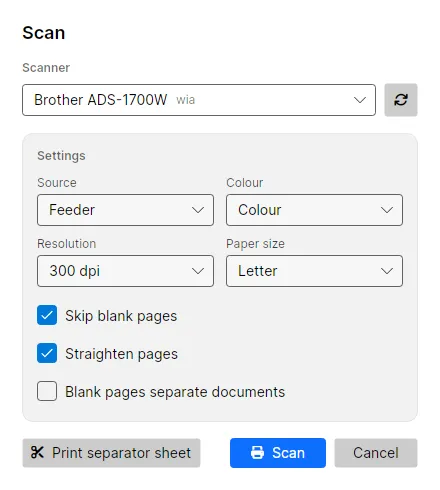
Blank pages are skipped and pages straightened by default. The pages become one file in the queue and are recognized like any other.
What you get
- PDF, TIFF, PNG, JPEG, WebP, BMP, GIF, HEIC, AVIF and JPEG XL as input. HEIC needs the HEVC Video Extensions and AVIF the AV1 Video Extension, both from the Microsoft Store; Inklight ships neither. JPEG XL is built in.
- Recognition on the CPU, or on the graphics card through Direct3D. Inklight measures the PC on first start and suggests a preset.
- Scanning from WIA, TWAIN and eSCL scanners on every plan.
- The Check pass for numbers, unsure words and IBANs with a failing checksum before you rely on the text.
- Word, Excel and Markdown exports with Personal; plain text on every plan.
- Hot folders that run in the system tray and can start at login, and a command line (
inklightc.exe) for scripts, with Business. - The Free plan writes a small footer on every page; Personal and Business write clean files. See the plans.
Limits
- Windows on x64 only.
- Latin-script printed text: English, German, French, Spanish, Italian and Dutch are the tested languages. No handwriting, no Cyrillic, no CJK.
- No service mode: hot folders are watched while Inklight runs in the tray.
- The models download once, so the first run needs a connection.
Related guides
- OCR software for Linux covers the AppImage build.
- Local OCR lists exactly when Inklight goes online.
- ABBYY FineReader alternative compares Inklight with FineReader for Windows.
Get Inklight from the Microsoft Store and drop your first scan on the window.