Bank statement OCR without uploading a page
Make scanned bank statements searchable on Windows or Linux. Inklight reads them on your computer and flags misread amounts and IBANs with a bad checksum.
Published
Bank statement OCR turns a scanned or photographed statement into text you can search, copy and put in a spreadsheet. Statements hold account numbers, balances and every payment you made, so the OCR should run where the statement already is. Inklight recognizes statements on your own computer, on Windows and Linux, and never uploads them.
It also tells you which values to compare with the paper. An IBAN whose checksum fails is the first word it asks you to check.
How it works in Inklight
Drop the statement PDFs or scans onto the Inklight window. Each file becomes a Job in the Processing Queue, and when it is done, a searchable PDF appears beside the original. Recognition models download once after installing; from then on recognition runs offline.
Paper statements can go straight from the scanner, on every plan. Click the Scan card at the top of the queue, choose the feeder and both sides, and Inklight skips the blank backs and queues the pages as one file.
Click Check words to step through what Inklight doubts. An IBAN has a check digit pair, so a single misread digit makes the checksum fail. Inklight computes it for every IBAN it reads and puts a failing one first, marked “IBAN checksum fails”. Doubtful amounts follow.
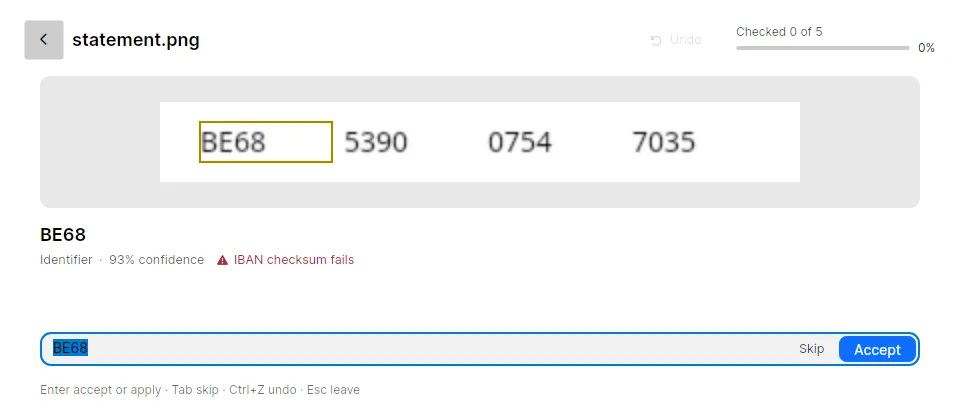
Compare each group of four with the paper, then type the right IBAN or amount and press Enter. The searchable PDF is written again with your correction, so a search for that IBAN finds the statement.
What you get
- A searchable PDF per statement (every plan), with the scan unchanged underneath. Free writes a small footer on every page; Personal and Business write clean files.
- IBAN and amount checks (every plan). IBANs with a failing checksum come first, then numbers and words below the confidence threshold. More on this in how to check and fix OCR errors.
- The transactions in Excel (Personal). With a layout-aware preset, each table on the statement becomes its own worksheet: date, payee, amount and balance in the columns the statement had. Cells stay text, so
01.10.is not turned into a date. Scanned PDF to Excel shows the workbook. - Local processing (every plan). No account, no upload, no server. Inklight goes online only for model downloads, licence and update checks, and error reports, which never include document contents. Local OCR lists every connection.
- Years of statements in one run (every plan). Drop a folder and the queue works through it in the background.
Limits
- Inklight reads printed statements in Latin script. Handwritten notes in the margin are not recognized.
- It checks the IBAN checksum, not whether the account exists or belongs to anyone.
- It does not categorize payments or import them into banking or accounting software. You get the text, the checked values and, on Personal, the tables as a workbook.
- A statement your bank sent as a PDF with text on every page needs no OCR. Inklight leaves such a file alone.
Related guides
Receipts and invoices raise the same amount problem. See receipt OCR. To file statements in Paperless-ngx after OCR, read Paperless-ngx OCR. For other local tools, see the best OCR software for searchable PDFs.