Legal OCR: searchable case files, nothing uploaded
Legal OCR on your own PC. Make case files, contracts and court documents searchable without uploading client data, and check case numbers first.
Published
Legal OCR makes a scanned case file, contract or court document searchable, so a search for a party, a clause or a case number finds the page. The scans hold privileged client information, so the recognition should run where the files already are. Inklight reads them on your own Windows or Linux computer and writes a searchable PDF beside each one. Nothing is uploaded.
Search is only as good as the recognized text. Inklight outlines the words it is unsure about and puts case numbers ahead of ordinary words. Check those before anyone relies on a search that finds nothing.
Why OCR for client files should run locally
An online OCR service receives every page you send it. Under ABA Model Rule 1.6(c), a lawyer must make reasonable efforts to prevent unauthorized access to information relating to a representation. In Germany, § 43e BRAO lets a lawyer give a service provider access to confidential facts only under a confidentiality agreement in text form, and only with the client’s consent when the service is for a single matter.
With local OCR, no outside provider receives the pages. Inklight has no account and no server that sees your documents. The recognition models download once after installing, and from then on recognition runs offline. Inklight goes online only for model downloads, licence and update checks, and error reports, which never include document contents. Local OCR lists every connection.
This describes the software. It is not legal advice on your obligations.
Turn a case file into searchable PDFs
- Drop the scans or PDFs onto the Inklight window, or drop a whole folder. Each file becomes a Job in the Processing Queue, and Inklight recognizes it in the background.
- To scan paper, click the Scan card at the top of the queue and choose the feeder and both sides. Inklight drops blank backs and straightens the pages. Scanning is on every plan.
- When a Job is done,
{name}_ocr.pdfappears beside the original. The pages stay as scanned, and the PDF gains an invisible text layer.
Inklight leaves a PDF alone when it already has text on every page, such as a brief filed electronically. In a PDF where only some pages have text, it recognizes the others and keeps the rest of the file.
To make one file out of loose pages, select them in the queue and choose Combine into one PDF from the right-click menu. You get one searchable PDF in queue order, and the originals stay untouched.
Keep the Output beside the original. Inklight can write each searchable PDF over its original (Personal and Business, after a one-time confirmation), but that destroys signatures and transfer notes on court and beA files, and Inklight cannot restore the original. Use it only with a backup of the originals.
Check case numbers before you rely on search
A case number with one digit misread looks right on the page, and a search for it finds nothing. Inklight outlines three kinds of words:
- words below its confidence threshold that no word list knows
- numbers
- words its two recognition models read differently
Click Check words in the queue header to go through every finished file, riskiest first.
Identifiers come first. A German court file number (Aktenzeichen) such as 4711/24 counts as an identifier, so Inklight shows it before amounts and ordinary words. Any other word with a digit, such as the US matter number 24-118, comes next.
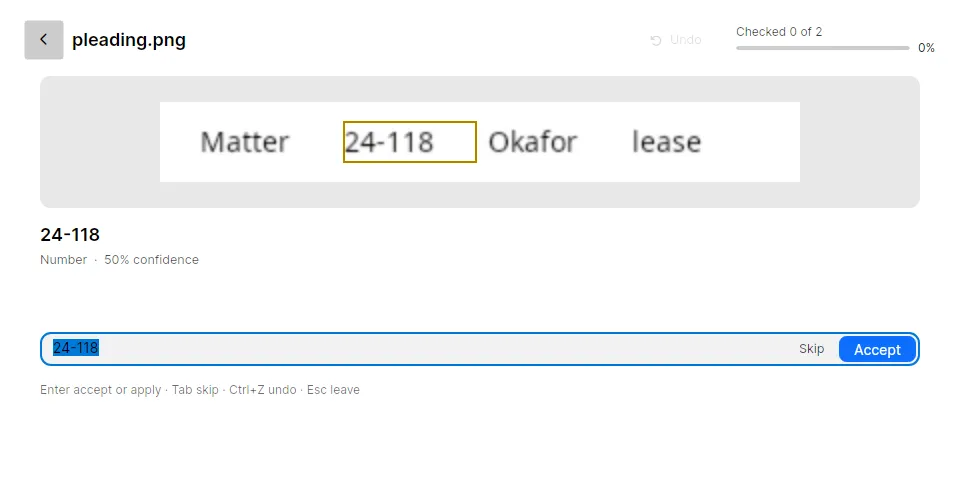
Compare the outlined word with the scan. Enter accepts it, typing replaces it, and Tab skips it. Inklight writes every decision into the searchable PDF straight away. A party name misread the same way in several files appears once, as a group, so one correction fixes every copy. How to check and fix OCR errors covers the keys and the groups.
The Check pass shows only the words that meet its rules. If both models misread a word with high confidence, Inklight does not outline it. For the values a matter depends on, such as file numbers, party names, dates of service and deadlines, open the file from its card in the queue, press Ctrl+F and type the value as printed. “No results” means the text layer reads it differently.
Name each file after its matter (Business)
With Business, a file name pattern can carry the case number. Open Preferences › Output and put {matter} or {aktenzeichen} in the file name pattern. Inklight fills it from the first US matter number (12-345) or German court file number on the first page with text, and 1234/24 becomes 1234_24. When it finds none, the token stays empty.

Before you file with a court
Inklight checks each Output against two filing rules, on every plan:
- Size. When an Output is larger than the court filing size limit, Inklight shows a size warning. The limit is one number in Preferences › Output, 35 MB by default for US federal courts. Germany’s beA takes 200 MB.
- Not filing-safe. Inklight marks a PDF that carries JavaScript, embedded files, encryption or form fields as Not filing-safe and names what it found.
Inklight strips nothing, so the original’s pages, fonts and signatures stay as they are. Fix the file in your PDF editor before filing. Where a court asks for PDF/A, turn on Archival PDF. PDF/A OCR shows which files become PDF/A-2b.
Practice software and hot folders (Business)
Business adds hot folders. Inklight watches a folder and turns each file put there into a searchable PDF. A folder pair writes the result into a second folder under the original’s file name and copies PDFs that are already searchable unchanged. The RA-MICRO help page on OCR describes the same setup, called Übergabeordner, where both programs use the same input and output folders.
Hot folder Jobs only convert. They never go through the Check pass. For a document that matters, drop it on the window yourself and check its words.
Limits
- Inklight reads printed Latin-script text. It does not recognize handwritten notes or signatures. English, German, French, Spanish, Italian and Dutch are the tested languages.
- The Check pass ranks case numbers. It does not look them up in a court register or your practice software.
- Windows and Linux only. There is no macOS version.
- Free writes a small footer on every page. Personal and Business write clean files; see the plans.
More guides
- Batch OCR a whole folder of scanned PDFs offline for a backlog of old files.
- OCR German: umlauts and ß for German correspondence and court orders.
- Bank statement OCR for statements in a client’s file.
Get started
Download Inklight for Windows or Linux. Every install starts with a seven-day Business trial, so you can try name tokens and hot folders on your own files.